Occlusion Mask
Added in v1.4.1An Occlusion Mask lets a Standard layer carry a painted coverage map that hides selected eligible image layers drawn after it. This is a non-destructive way to refine overlap and foreground coverage.
Occlusion Mask versus Clipping Mask
| Tool | What it does | Use case |
|---|---|---|
| Clipping Mask | Uses one layer’s existing alpha/shape to reveal another layer inside or outside the shape | Shape-based cutouts and reveals |
| Occlusion Mask | Uses painted coverage on a Standard layer to hide eligible layers drawn later in the render stack | Hand-painted overlap, cover and foreground corrections |
These are separate tools in Advanced → Layers. See Clipping Masks for the shape-based workflow.
Paint a mask
Choose an owner
In Advanced → Layers, select an eligible Standard layer and open Occlusion Mask.
Paint coverage
Use Paint to mark areas that should cover later-drawn content. Use Erase to refine or remove strokes.
Adjust edges
Enable Edges for edge-aware painting, or open Adjust to change brush Size, Intensity and Softness.
Choose targets
Open Adjust → Targets to use All eligible layers or select a subset.
Apply
Preview the result and tap Apply. Cancel discards the current editor changes.
Brush and mask controls
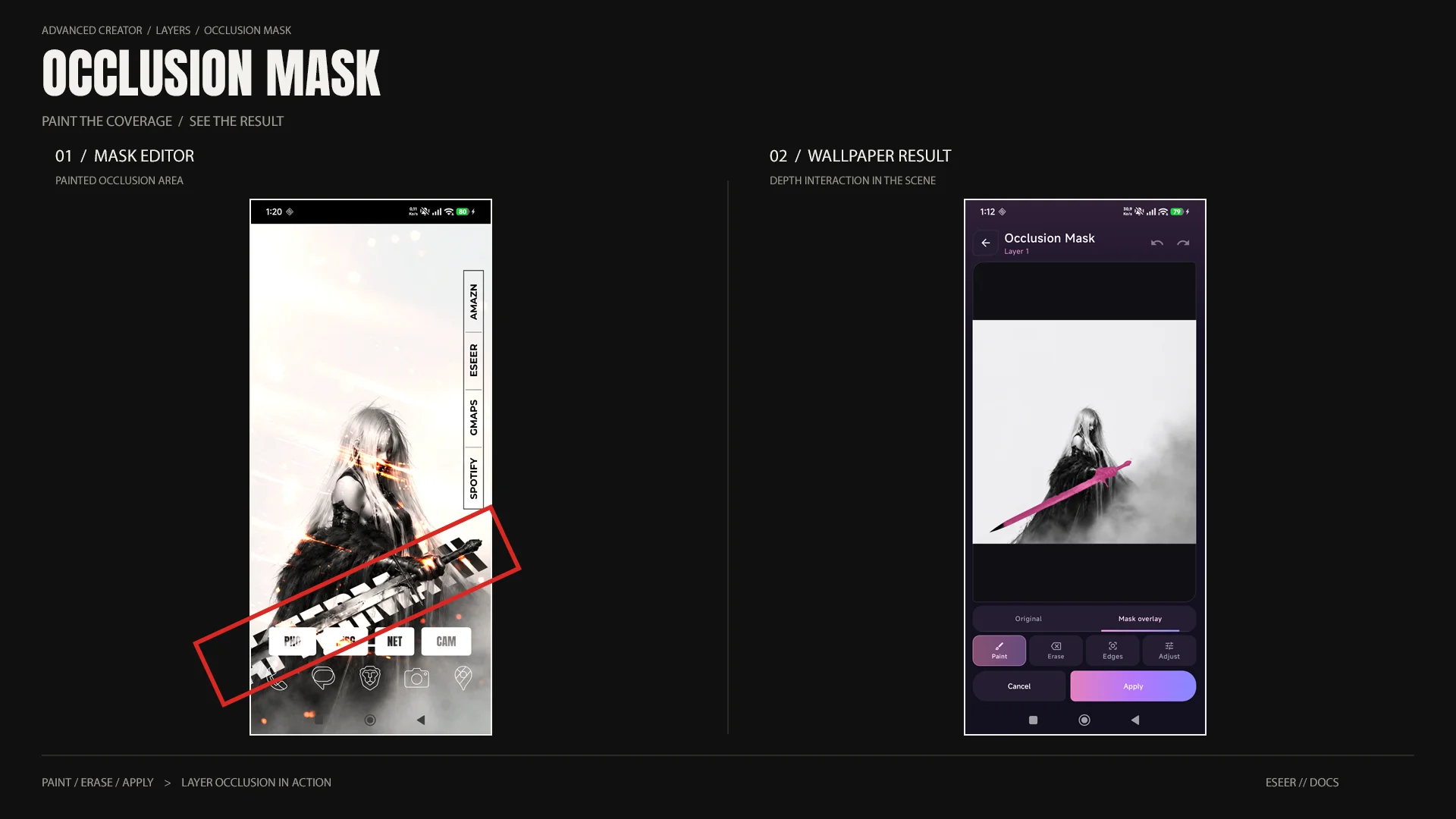
| Control | Behavior |
|---|---|
| Paint / Erase | Add or remove painted coverage |
| Edges / Edge Tolerance | Guide strokes using the source image’s contours and adjust how closely they follow nearby colors |
| Size | Brush diameter relative to the source image |
| Intensity / Softness | Opacity and softness of new brush strokes |
| Feather | Soften the final painted mask boundary without repainting its source pixels |
| Fade | Change the mask’s overall strength |
| Targets | All eligible downstream content or selected eligible layers |
| Clear Mask / Undo | Clear painted coverage or undo edits in the mask editor |
How render order affects coverage
Occlusion operates on the draw stack. It hides eligible content drawn after its owner, not arbitrary layers chosen solely by their Z distance. Reordering images or changing mask relationships can change which layers are eligible.