Layer Management
Added in v1.0.48Layer Management covers the layer stack itself: select and reorder layers, add or import artwork, hide layers in the editor preview and use image/layer operations.
Layer targets, selection and ordering
Advanced Layers begins with a horizontal layer strip. Selecting a card changes the controls underneath. The ‹ / › buttons reorder the layer, and Add layer opens the asset/import workflow.
| Status | Meaning |
|---|---|
| PINNED | Behavior is set to Pinned |
| MASK | This layer is a mask owner |
| MASKED L# | This layer is revealed/clipped by the referenced mask layer |
| UNLOCK | Visibility is set to On Unlock |
| ACTION | A Launch App Action is configured |
| AS | The image originated from editable Asset Studio text |
Editor-only hide / show
The eye button beside the selected layer temporarily hides or shows that layer only inside the Creator preview. The same hidden state is reflected in the Advanced Intro layer strip.
Add layer and ordered multi-image import
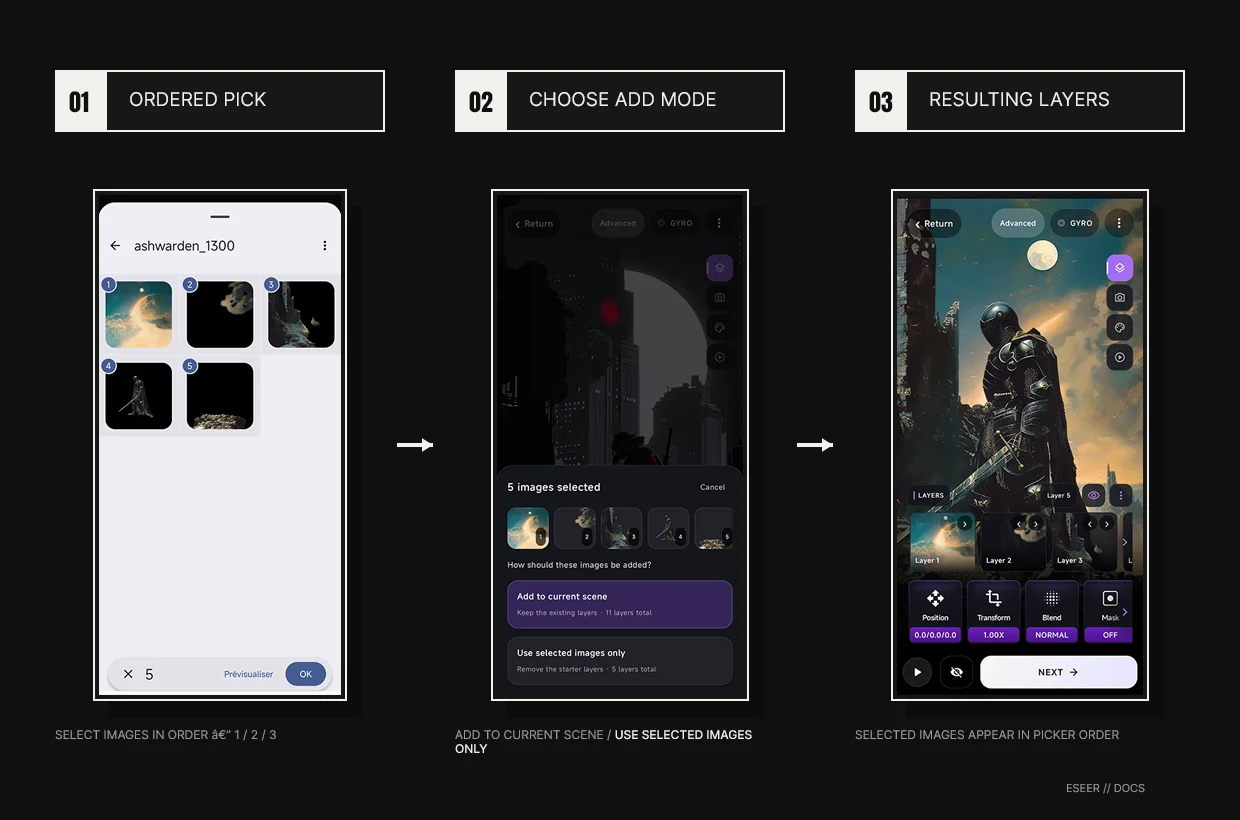
Add layer → Import picture supports ordered multi-selection. If the six-layer starter is still untouched and two or more images are selected, Creator asks whether to Add to current scene or Use selected images only. Once the starter has been edited, batch import simply adds the new images to the current scene.
More: image and layer operations
| Control | Behavior |
|---|---|
| Replace Image | Replaces the selected image using the single-image picker |
| Clear Image | Clears the image while retaining the layer entry |
| Edit in Asset Studio | Appears for supported editable Asset Studio text |
| Duplicate | Creates a duplicate layer |
| Delete Layer | Available for deletable layers beyond protected default slots |