3D Scene Creator Overview
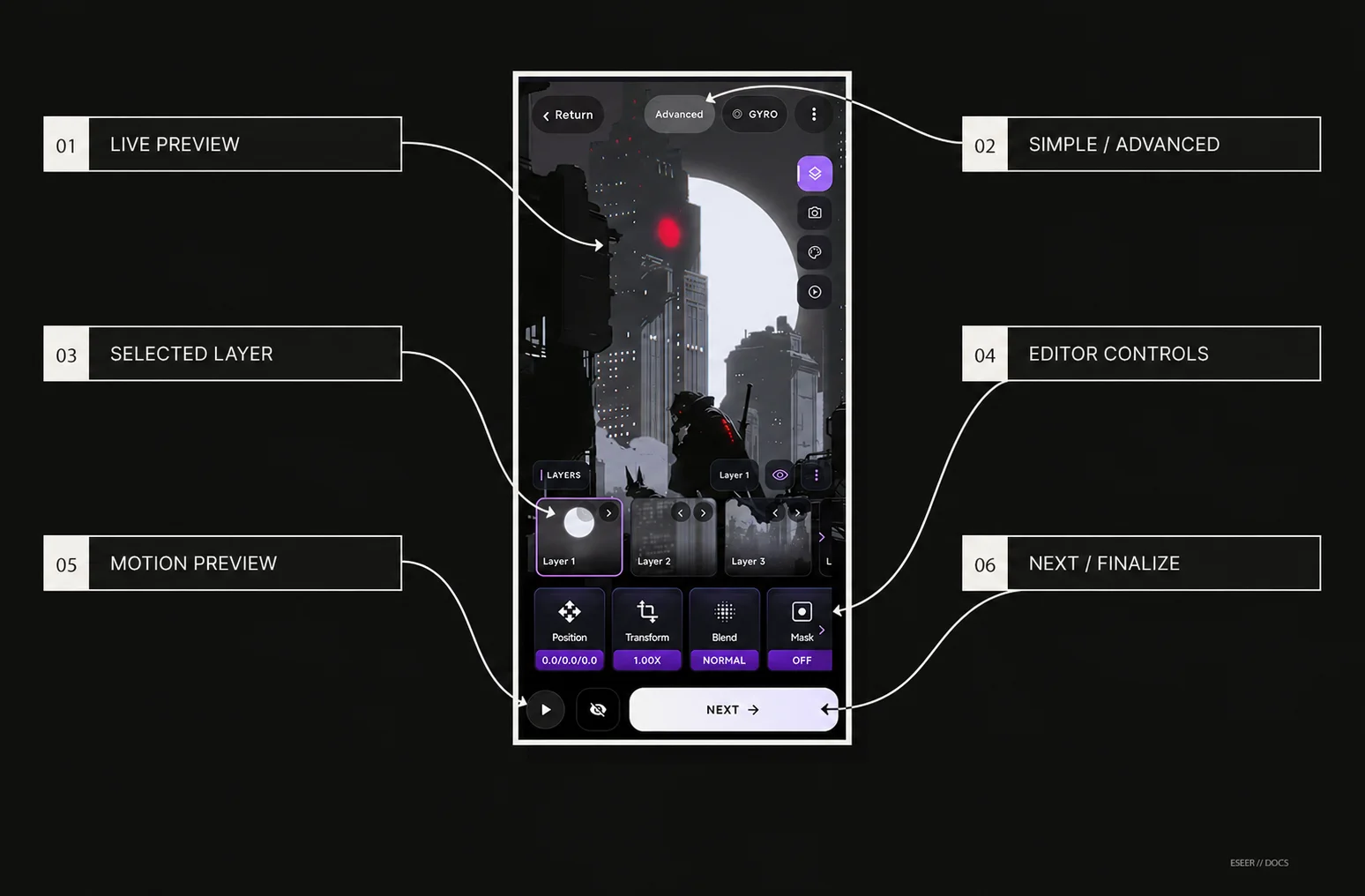
3D Scene is ESEER’s layered wallpaper workflow. Simple and Advanced edit the same scene; Advanced adds precise camera, per-layer behavior, effects, shadows and intro authoring.
How a 3D Scene is structured
A 3D Scene is one editable project made from an ordered stack of image layers plus scene, camera and intro settings. Simple and Advanced are two ways to edit that same scene.
| Part | What it owns | Typical examples |
|---|---|---|
| Layer | The image element and behavior local to that element | Position, Transform/Scale, Blend, Mask, Shadow, Effects, Pinned behavior, Visibility, Action |
| Scene | Properties shared by the composition | Background color, Simple depth spacing and Advanced Dynamic Shadows |
| Camera | How the viewer moves around the layer stack | Field of View, Horizontal, Vertical, Orbit Around, Smoothing |
| Intro | How layers/camera enter and how temporary Intro Effects behave | Motion, Transform, Timing, Fade and Intro Effects |
New projects start from one shared six-layer scene
New and reset projects use the same six-layer ESEER starter scene in Simple and Advanced. It includes layer transforms, background/camera settings and intro settings. Switching Simple ↔ Advanced never loads a different starter or discards your saved scene.
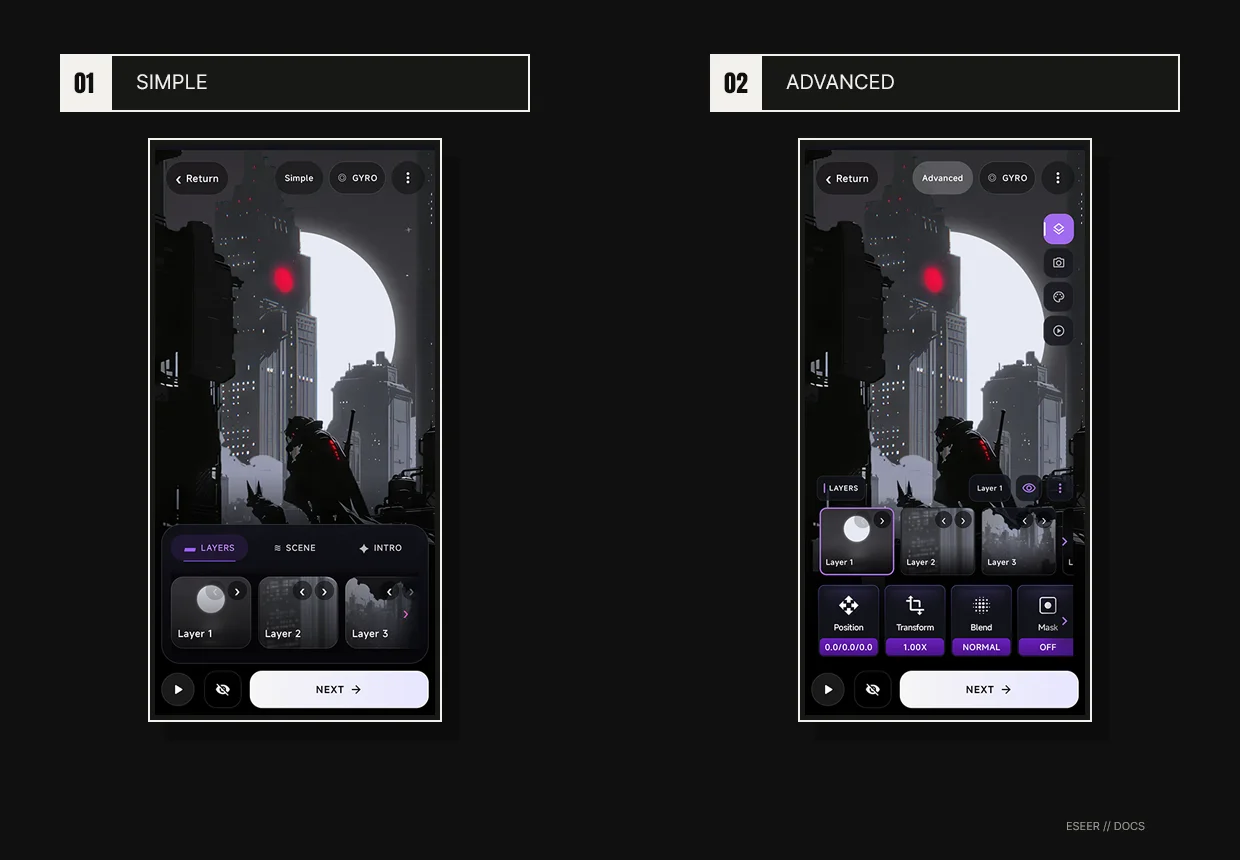
Simple Editor and Advanced Editor
| Need | Simple Editor | Advanced Editor |
|---|---|---|
| Fast composition | Primary workflow | Available, but with more contextual controls |
| Move / resize a layer | Position X/Y and Scale | Position X/Y/Z for Standard layers; Scale is inside Transform |
| Scene depth | Close / Default / Far scene spacing | Per-layer Standard Z plus camera perspective controls |
| 3D rotation / blend | Not exposed as Simple primary tools | Transform X/Y/Z, Flip H/V and Blend |
| Camera controls | Preview input only | FOV, Horizontal, Vertical, Orbit Around, Smoothing |
| Layer behavior | Image/layer operations only | Mask, Shadow, Effects, Pinned behavior, Visibility and Action |
| Scene presentation | Depth preset + Scene Color | Background + Dynamic Shadows |
| Intro | Quick preset + speed | Per-layer/camera Motion, Transform, Timing and Effects |
Layer order, scene depth and per-layer depth are different things
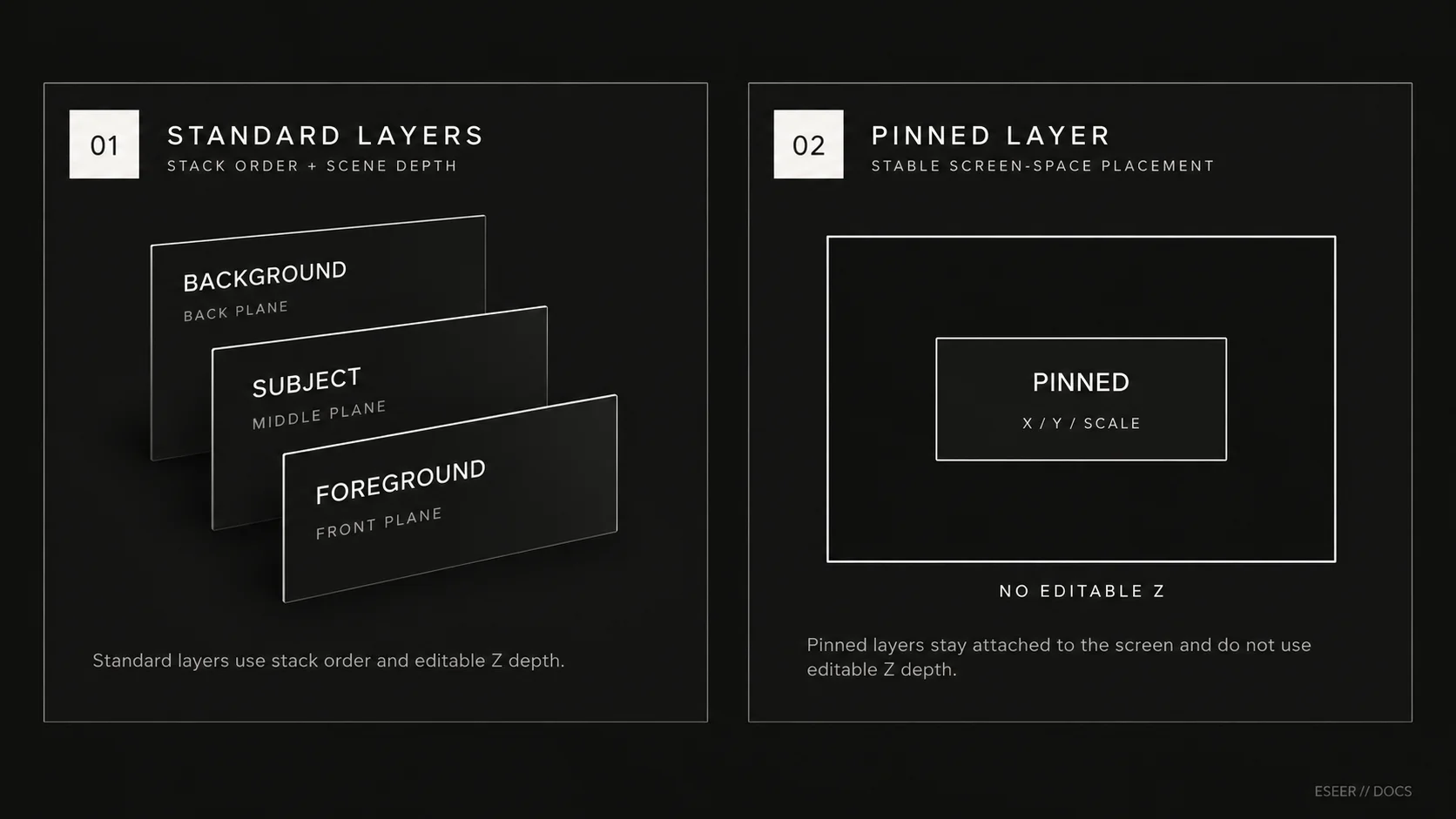
Layer order is stack order. Scene depth in Simple changes spacing between Standard layers as a group. Position Z in Advanced adds a depth offset to a Standard layer. Scale changes framing, not depth.
| Control | Scope | Use it when… |
|---|---|---|
| Reorder layer | One layer in the stack | An element must render in front of or behind another element |
| Simple Depth preset | Whole Standard-layer spacing | You want weaker or stronger parallax without tuning every layer |
| Advanced Position Z | Selected Standard layer only | One Standard layer needs an additional depth offset |
| Pinned Position | Selected Pinned layer | Uses X/Y only; Pinned projection does not use editable Z |
| Transform → Scale | Selected layer only | The image is framed too large/small or needs more edge coverage |
Adding and importing layers
The Add layer surface can use ESEER assets, My Assets / recent assets, Asset Studio text or imported pictures. Import picture supports ordered multi-selection. On an untouched starter scene, selecting two or more images opens an explicit choice between Add to current scene and Use selected images only.
Scene-level actions
| Action | Reference behavior |
|---|---|
| Clear all layers | Removes the layer stack and layer-specific settings while keeping scene/camera settings; add at least one layer before creating the wallpaper |
| Reset Scene | Restores the complete six-layer starter scene and its default scene/camera/intro settings |
| Simple ↔ Advanced | Changes the editor view without replacing scene data |
Where to find each control
| Control or feature | Editor location |
|---|---|
| Add / select / reorder layers | Simple → Layers or Advanced → Layers |
| Editor-only hide/show | Advanced → Layers / Intro → eye icon beside the selected layer |
| Position X/Y | Simple or Advanced → Layers → Position |
| Position Z | Advanced → Layers → Position; Standard layers only |
| Scale / 3D rotation / flips | Advanced → Layers → Transform (Simple exposes Scale separately) |
| Blend mode | Advanced → Layers → Blend |
| Pinned behavior | Advanced → Layers → Behavior → Pinned |
| From Start / On Unlock | Advanced → Layers → Visibility |
| Per-layer shadow | Advanced → Layers → Shadow |
| Per-layer effects | Advanced → Layers → Effects |
| Mask / Action | Advanced → Layers → Mask / Action |
| Background / Dynamic Shadows | Advanced → Scene |
| Close / Default / Far depth | Simple → Scene → Depth |
| FOV / Horizontal / Vertical / Orbit Around / Smoothing | Advanced → Camera |
| Simple intro preset / speed | Simple → Intro |
| Per-layer / camera intro | Advanced → Intro |
| Clear all layers / Reset Scene | Creator top-right overflow menu |