Extended Wallpaper Effects and Reveals
Extended Wallpapers combine permanent visual effects, interactive Touch Effects, overlays and one-time Visual Intro stages. Effects can be stacked, while each family keeps its own editing workflow.
Effect families
Extended Wallpapers organize effects by family. Choose a family first, then select the effect or overlay you want to use.
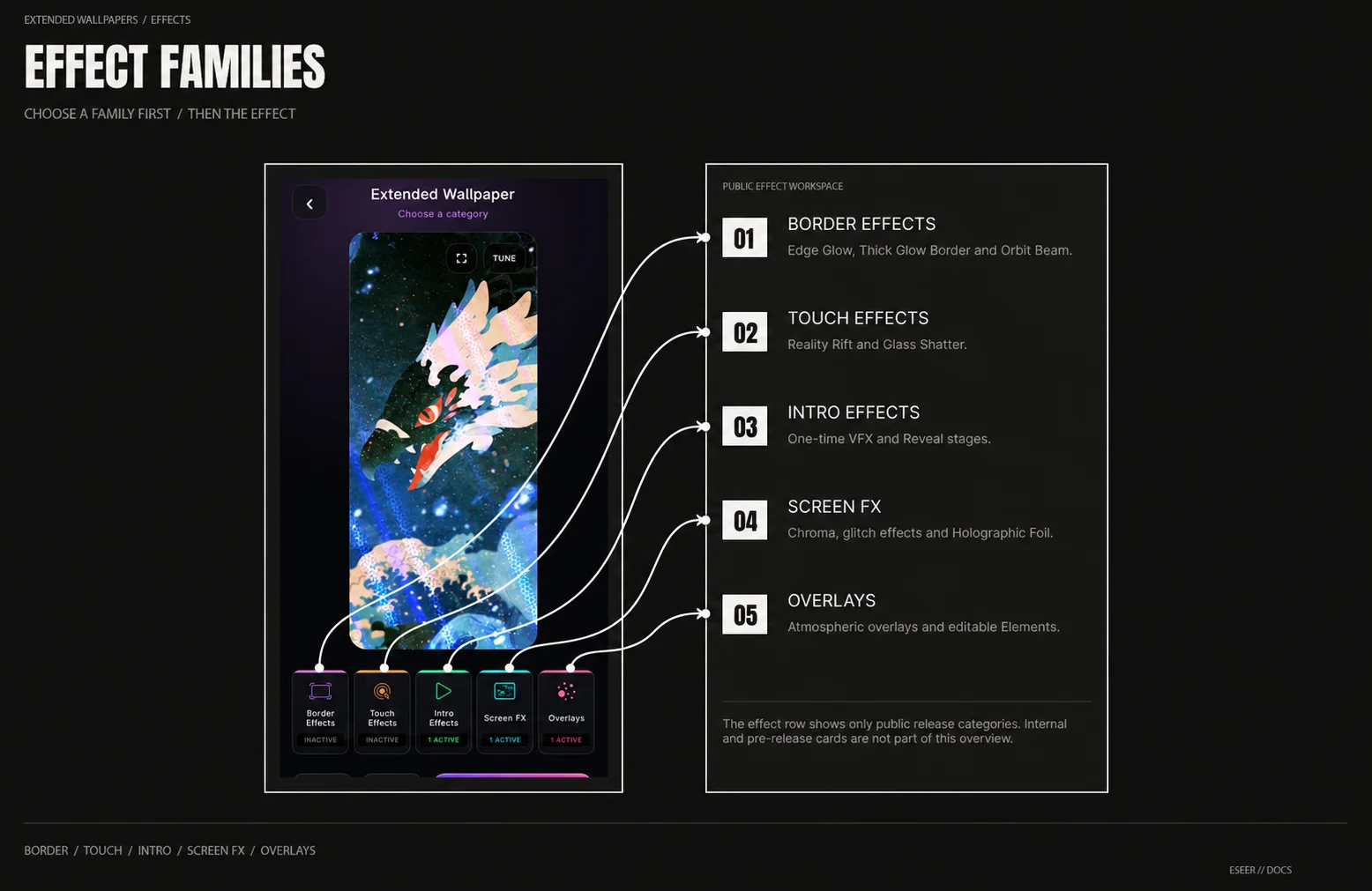
| Family | Available content |
|---|---|
| Border Effects | Edge Glow · Thick Glow Border · Orbit Beam |
| Touch Effects | Reality Rift · Glass Shatter |
| Intro Effects | VFX + Reveal stages |
| Screen FX | Chromatic Aberration · Screen Glitch · Digital Glitch · Slice Glitch · Holographic Foil |
| Overlays | Atmospheric overlays + Elements |
Selecting and stacking effects
Select an effect card to add it to the Extended Wallpaper. Several effects can be active at the same time, and each active effect keeps its own saved settings.
The shared effect stack currently supports up to 16 effects. Selecting None in a family removes the active effect from that family.
Border Effects
| Effect | What it does |
|---|---|
| Edge Glow | Adds an animated glow treatment around visible edges |
| Thick Glow Border | Creates a heavier border / glow treatment |
| Orbit Beam | Animates a beam around the wallpaper border |
Some Border Effects expose a Tweak action after they are enabled. Use it to adjust that effect while watching the live preview.
Touch Effects
| Effect | What it does |
|---|---|
| Reality Rift | Interactive distortion / rift response |
| Glass Shatter | Interactive shatter-style response |
Touch Effects react to interaction with the wallpaper rather than behaving only as a continuous screen filter.
Screen FX
| Effect | What it does |
|---|---|
| Chromatic Aberration | RGB / chromatic separation across the wallpaper |
| Screen Glitch | General screen-level glitch treatment |
| Digital Glitch | Digital blocks and unstable displacement |
| Slice Glitch | Horizontal slice tearing with RGB split and scanline treatment |
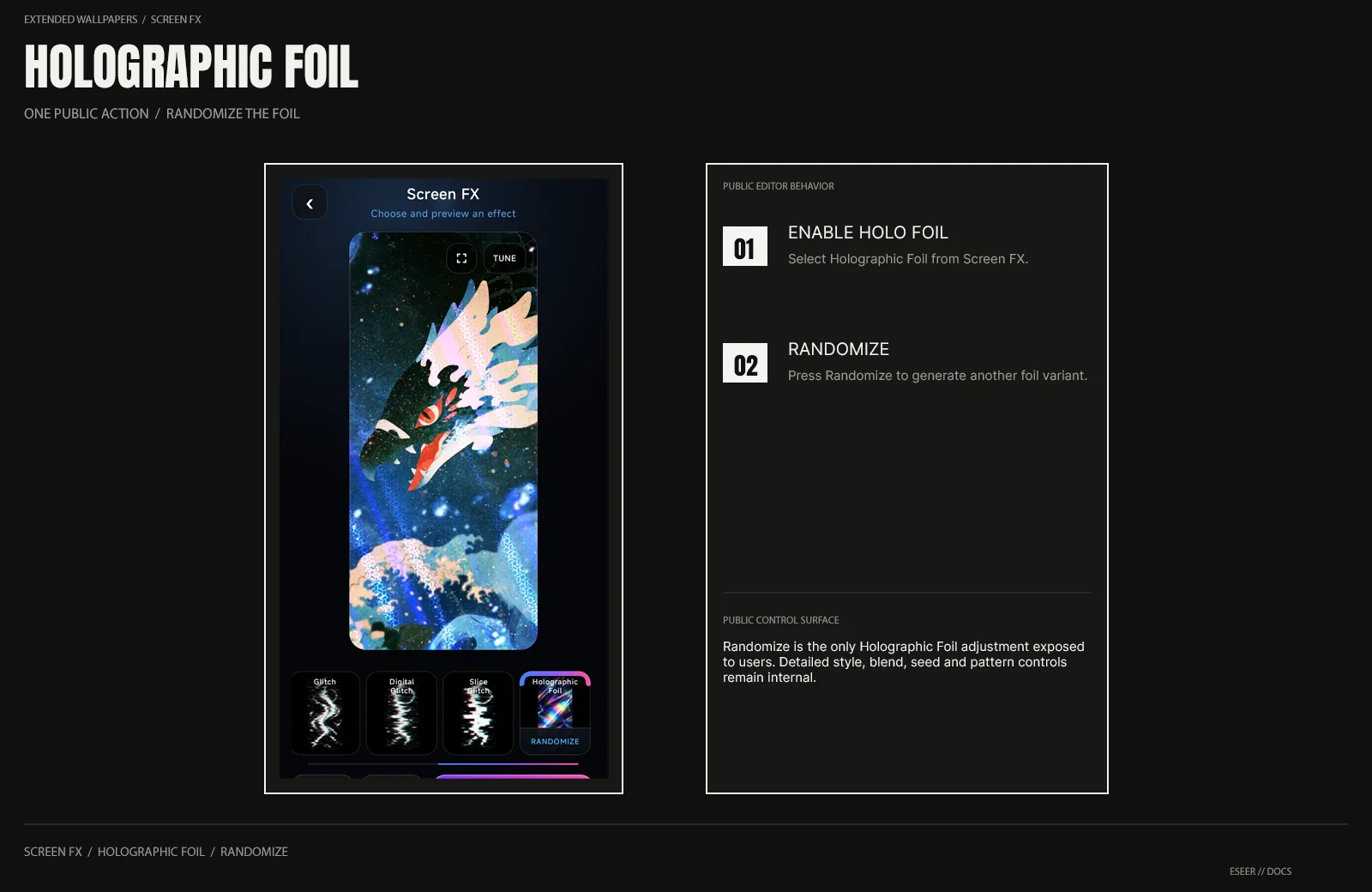
| Holographic Foil | Procedural holographic foil treatment with randomized visual variants |
Holographic Foil
For the public editor, Holographic Foil is intentionally simple: enable the effect, then use Randomize to generate another foil result.
Each Randomize pass changes the procedural foil configuration behind the effect, including the visible pattern and related foil response. The detailed material, blend and generation parameters are not exposed as user controls.
Overlays
Overlays are split into Atmospheric and Elements.
| Overlay family | Purpose |
|---|---|
| Atmospheric | Adds a visual asset over the wallpaper with Blend, Scale, Opacity, Offset and Parallax controls |
| Elements | Adds editable project elements, including assets created or edited through Asset Studio |
Intro Effects and Reveals
Visual Intro can combine a VFX stage with a Reveal stage. These are one-time intro stages rather than permanent screen effects.
| Intro family | Available options |
|---|---|
| VFX | Glass Shatter · Chroma · Glitch · Digital Glitch · Slice Glitch |
| Reveal | Diagonal Shards · Radial Fragments |
Replay the intro from the editor whenever you want to check the complete transition. After the sequence finishes, the wallpaper returns to its normal active effects.
Tweak, Validate and Cancel
For effects that expose Tweak, the tweak view lets you change that effect while keeping the live preview visible. Validate keeps the edited settings; Cancel restores the previous values.