Official documentation · Simple Editor · 3D Scene Creator
3D Scene: Simple Editor
Simple Editor keeps 3D Scene creation focused on Layers, Scene and Intro. Advanced-only features such as Pinned, masks, Actions, local FX, shadows and unlock activation are edited in Advanced.
Simple Editor interface
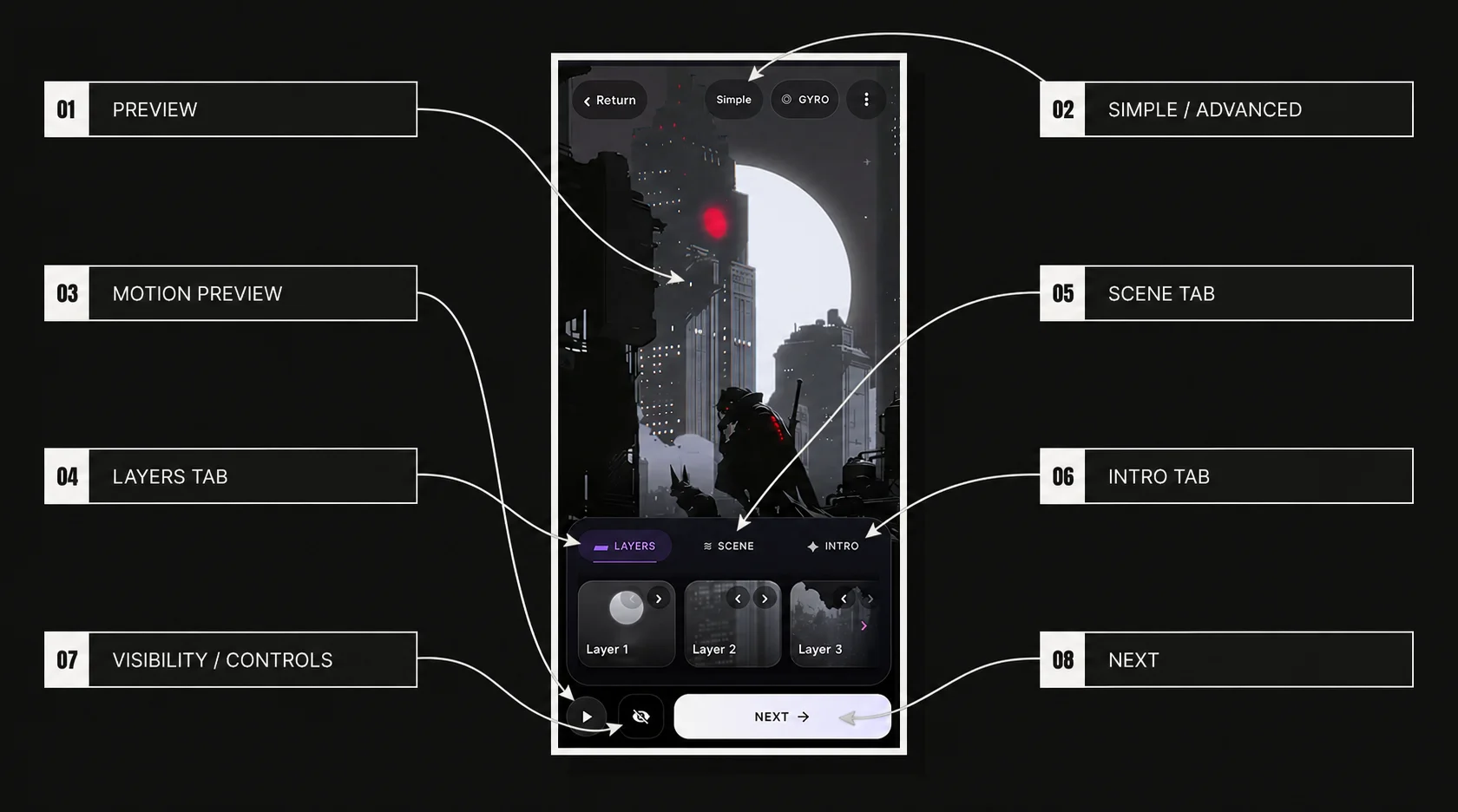
Simple Editor keeps the live preview visible and groups the editable scene into three bottom tabs: Layers, Scene and Intro. New projects open on the same six-layer starter scene used by Advanced. Effects, Pinned, masks, Actions, shadows and unlock visibility are Advanced-only.
Simple Editor keeps the live preview visible while Layers, Scene and Intro provide the primary editing workflow.
#
Interface element
Purpose
01
Preview
Shows the current scene while you edit it
02
Simple / Advanced
Switches between the Simple and Advanced interfaces without replacing the committed scene data
03
Motion Preview
Runs the scene preview motion so you can inspect the current result while editing
04
Layers tab
Opens the layer stack and the selected layer controls
05
Scene tab
Opens scene-wide Depth and Scene Color controls
06
Intro tab
Opens the quick intro preset, speed and replay controls
07
Visibility / Controls
Shows or hides the editor controls so the scene can be inspected with less UI over the preview
08
Next
Continues from the editor to the next/finalization step
Tab
Purpose
Main controls
Layers
Build and edit the image stack
Select/reorder/add layer, Position, Scale and image/layer operations
Scene
Change scene-wide presentation
Depth preset and Scene Color
Intro
Configure the quick scene intro
Animation preset, speed and replay
Layers tab
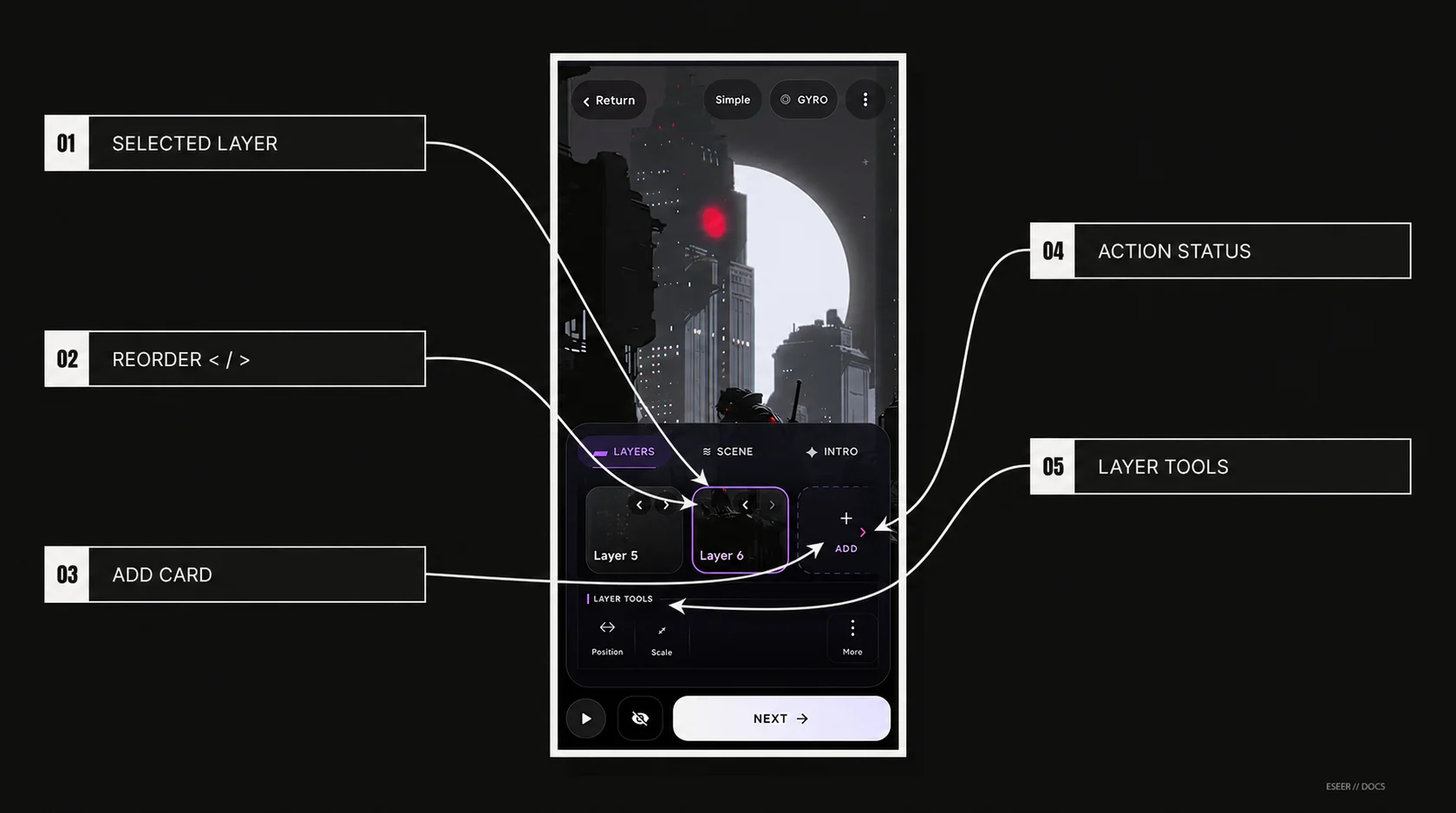
The layer strip is both the selector and the stack-order editor. Tap a card to make it active, use ‹ / › to move it in the ordered stack, or use ADD to open the asset surface.
The layer strip selects the active layer, controls stack order and exposes layer-specific tools.
#
Layer card element
Meaning
01
Selected border
This is the layer affected by the Simple layer tools
02
‹ / › reorder
Moves the layer backward/forward through the layer list
03
ADD card
Opens the Add layer surface
04
Launch App status icon
An Action already configured in Advanced is present; Simple does not edit it
05
Layer Tools
Opens Position, Scale and More for the selected layer
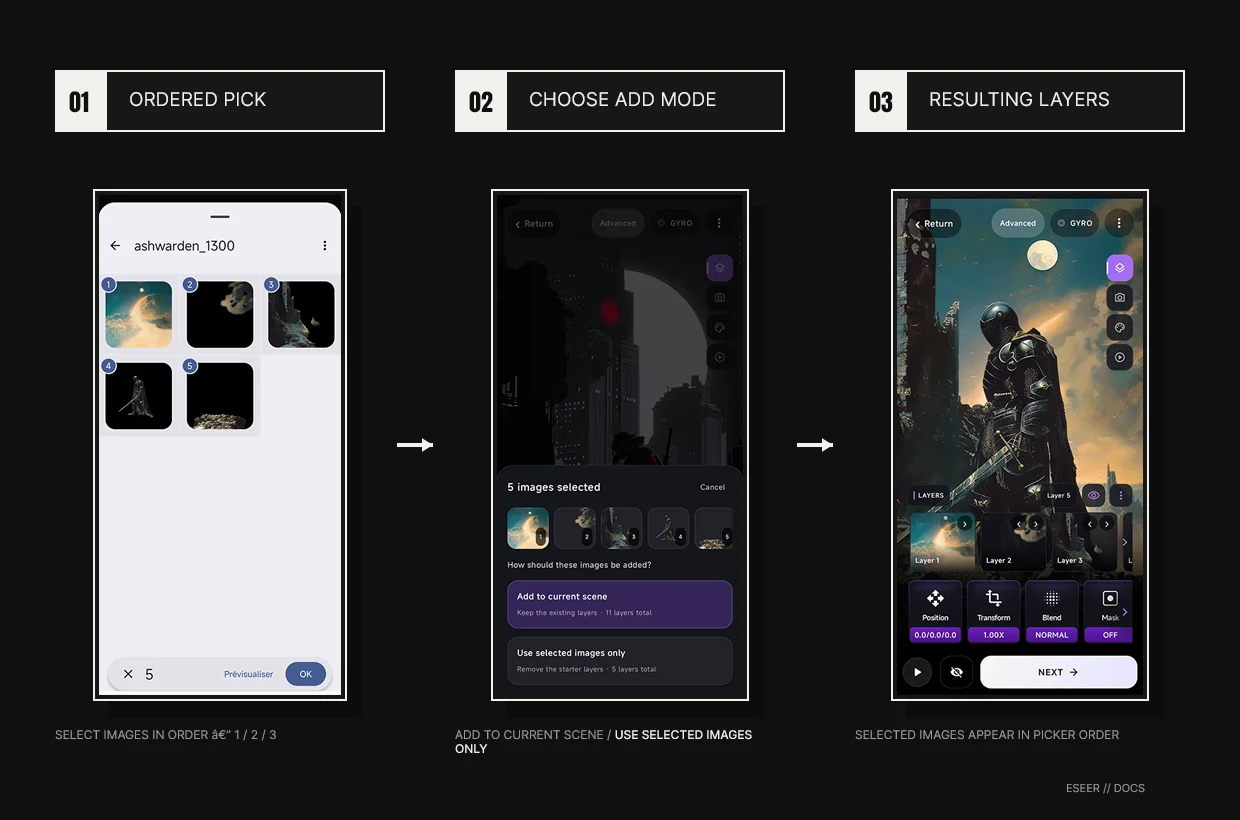
Add layer and ordered multi-image import
From ADD, Import picture uses Android’s ordered multi-image picker. If the original six-layer starter is still untouched and you select two or more images, ESEER asks whether to Add to current scene or Use selected images only. After the starter has been edited, batch imports append to the current scene.
Action
Picker behavior
Untouched starter + 2+ images
Explicit choice: keep the starter and append, or remove starter layers and use only the selected images
Edited/current scene
Selected images append in picker order
Replace Image
Single image only; replaces the selected layer
Oversized batch
Import & resize resizes only the images that exceed the safe layer limit
Ordered multi-image import uses the same picker and starter-scene choice described in Getting Started.
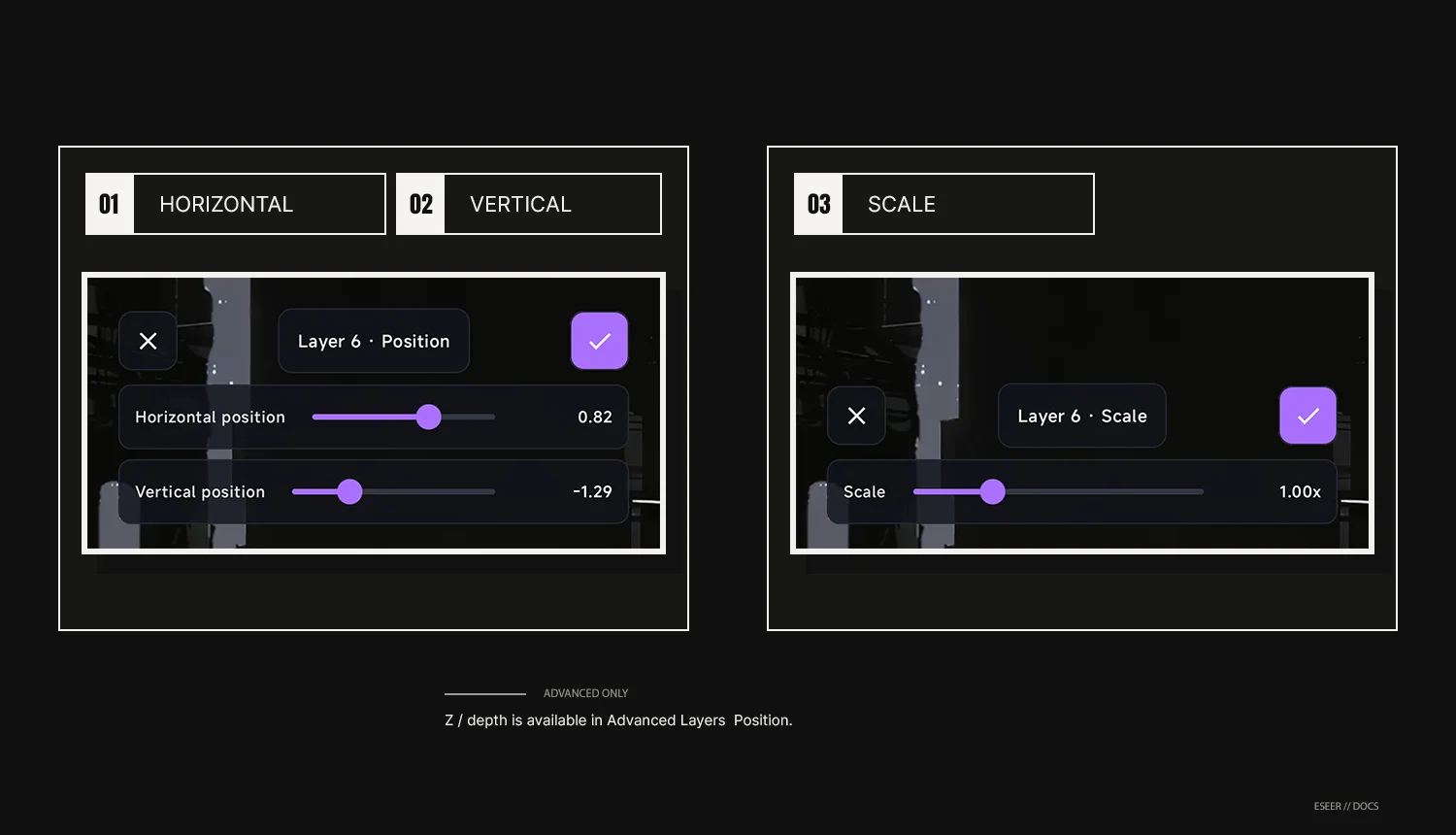
Position and Scale
#
Control
Simple range
Behavior
01
Horizontal position
-3.0 → +3.0
Moves only the selected layer left/right
02
Vertical position
-3.0 → +3.0
Moves only the selected layer down/up
03
Scale
0.25× → 3.00×
Changes only the selected layer size
Simple exposes X/Y positioning and Scale for the selected layer; editable Z depth is an Advanced control.
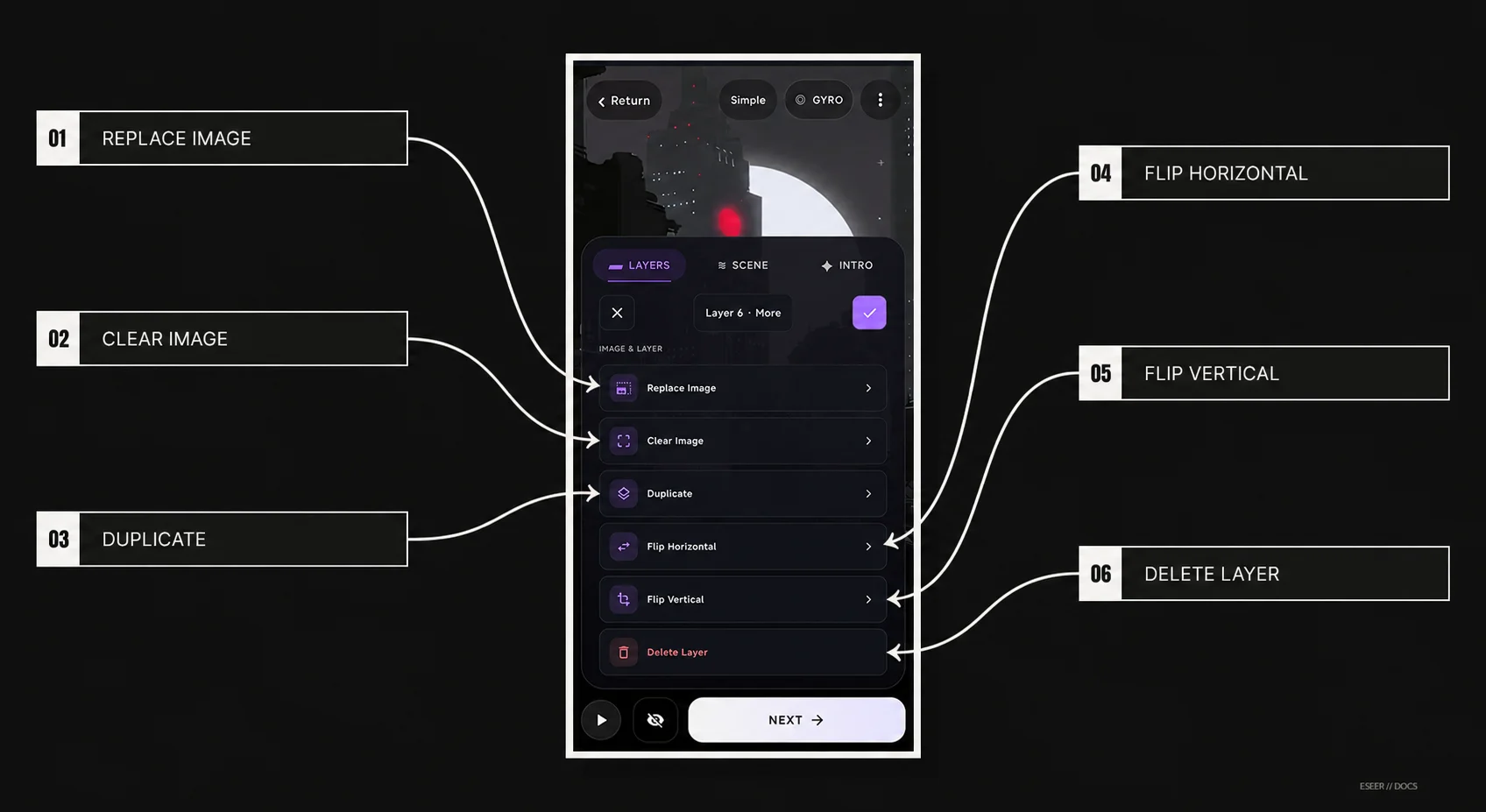
Layer More menu
Simple More is limited to image/layer operations. Behavior, masks and other advanced layer features are handled in Advanced so Simple stays focused.
#
Control
What it does
01
Replace Image
Replaces the selected layer image; single-image picker
02
Clear Image
Clears the image source without removing the layer entry
03
Duplicate
Creates a copy of the selected layer
04
Flip Horizontal
Mirrors the selected image horizontally
05
Flip Vertical
Mirrors the selected image vertically
06
Delete Layer
Removes deletable added layers; protected default slots are not deletable
Simple More is limited to image and layer operations; runtime behavior remains in Advanced.
Scene tab: Depth and Scene Color
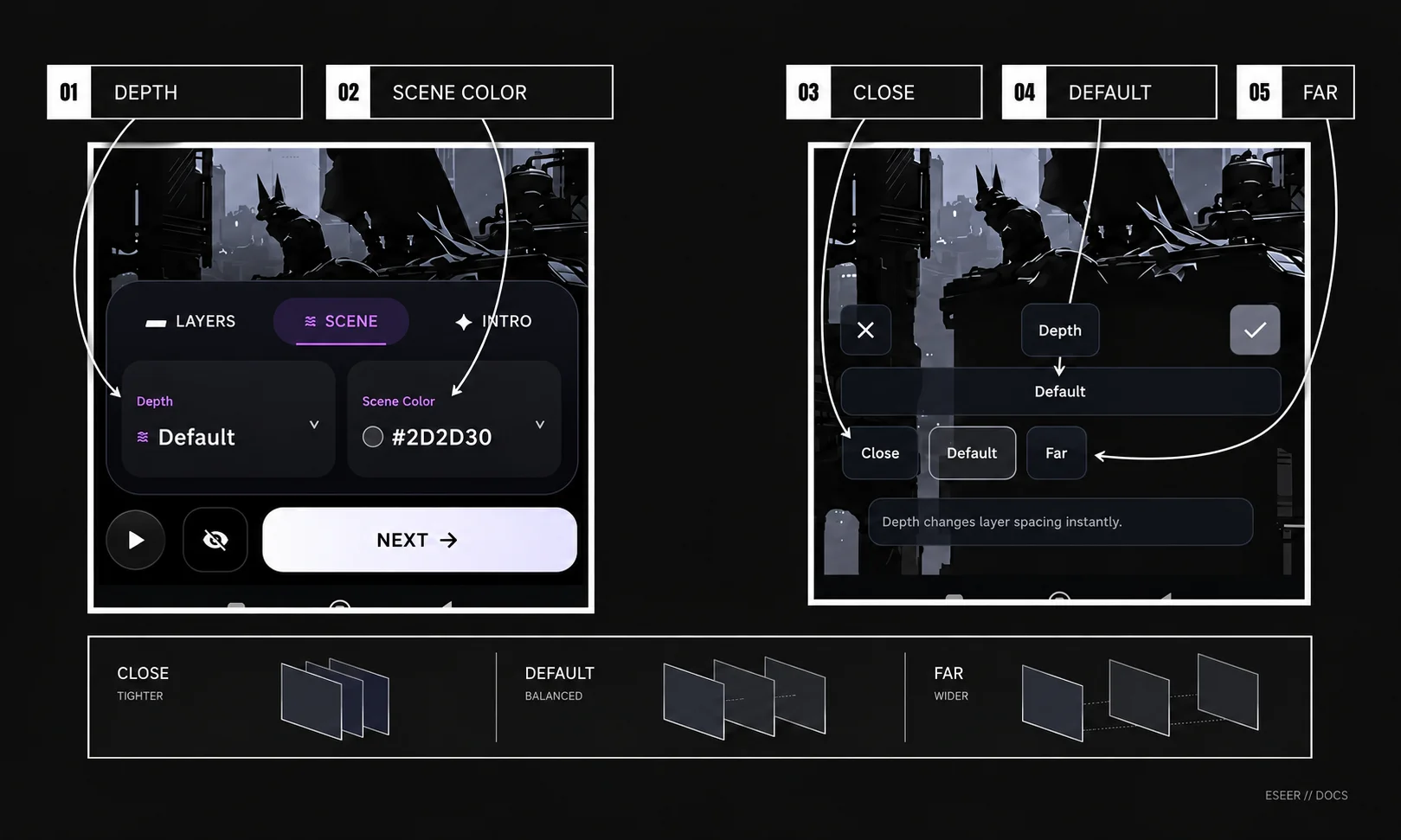
Scene Color defines the color behind the scene. Close / Default / Far changes layer spacing without changing Advanced camera values. Advanced adds per-layer Standard Z, camera controls and Dynamic Shadows.
Depth changes Standard-layer spacing as a group: Close is tighter, Default is balanced and Far is wider.
#
Interface element
Purpose
01
Depth
Opens the scene-wide depth preset selector
02
Scene Color
Changes the background color shown behind the layer stack
03
Close
Uses tighter Standard-layer spacing for weaker depth separation
04
Default
Uses the balanced default spacing between Standard layers
05
Far
Uses wider Standard-layer spacing for stronger depth separation
Close, Default and Far shown on the same scene so the change in layer spacing and parallax is easy to compare.
Depth preset
Relative layer spacing
Result
Close
65% of Default
Tighter stack; weaker depth separation
Default
100%
Balanced default spacing
Far
145% of Default
Wider stack; stronger depth separation
Intro tab
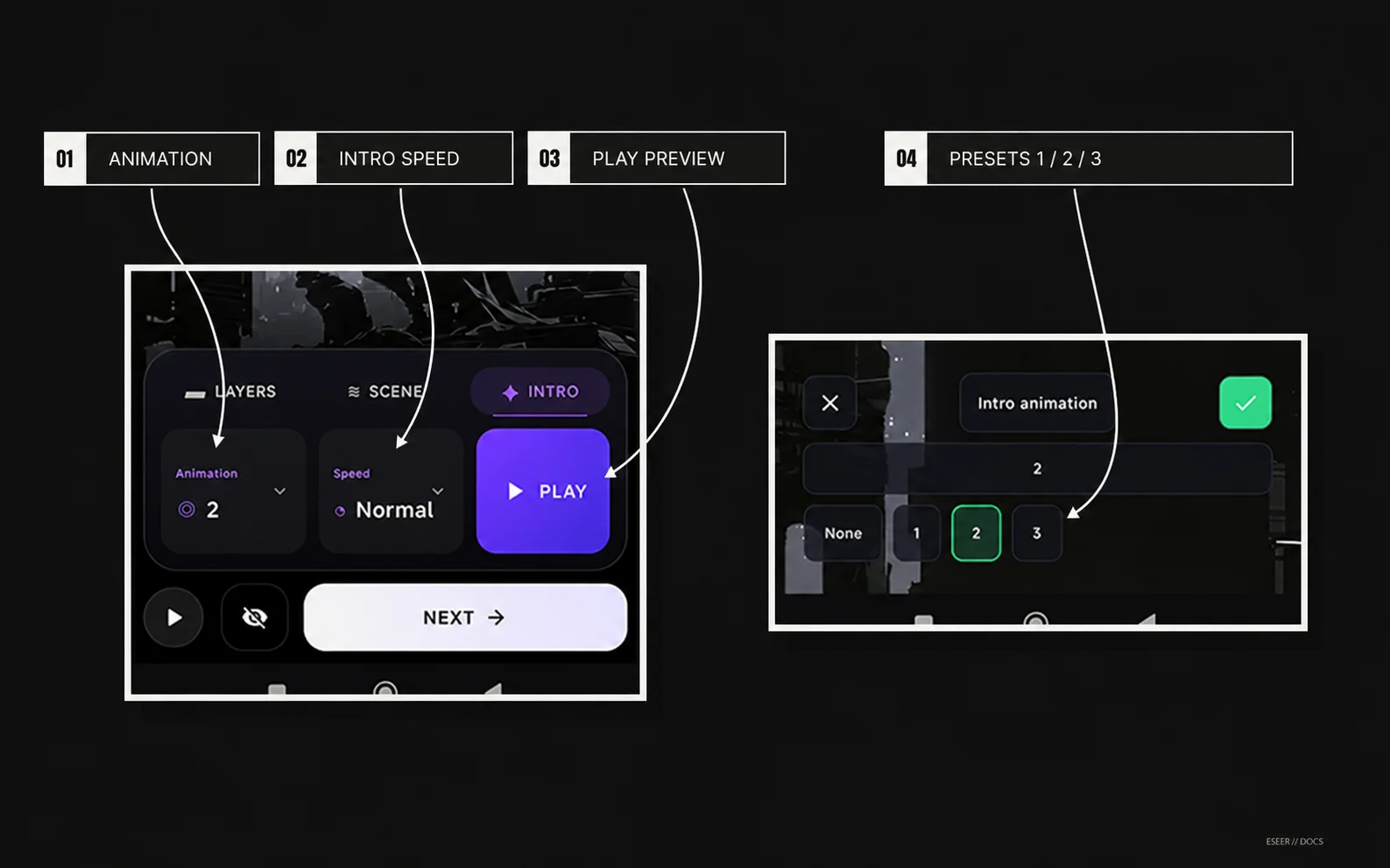
Simple Intro provides three scene-entry presets plus speed and replay. Advanced can later override individual layers or the camera without creating a second scene.
Control
Reference behavior
Animation 1
Depth/side-oriented staggered entry
Animation 2
Rising stacked entry; current default
Animation 3
Split-side entry
Speed
Approximately 1500 ms at the slow end to 360 ms at the fast end
Slow / Normal / Fast / Snappy
Preset speed points 0.15 / 0.45 / 0.70 / 0.90
Play Preview
Replays the quick intro without changing the final scene
Simple Intro provides three scene-entry presets, speed control and quick preview replay.
Preview motion
The preview input can use Gyro, Touch or a locked/static state. This changes how you inspect the scene while editing; it does not rewrite layer depth or camera settings.
Preview mode
Behavior
Gyro
Uses device motion to inspect the scene response
Touch
Uses finger input to inspect the scene response
Locked / static
Freezes preview motion without changing the saved scene