Camera Motion
Added in v1.1.09Horizontal and Vertical control how strongly the whole 3D scene camera reacts to gyro or touch input on each axis. They change response strength, not layer positions or animation speed.
Horizontal and Vertical motion
Horizontal and Vertical independently scale how strongly the 3D scene camera reacts to motion on each axis. Horizontal controls left/right camera response; Vertical controls up/down response.
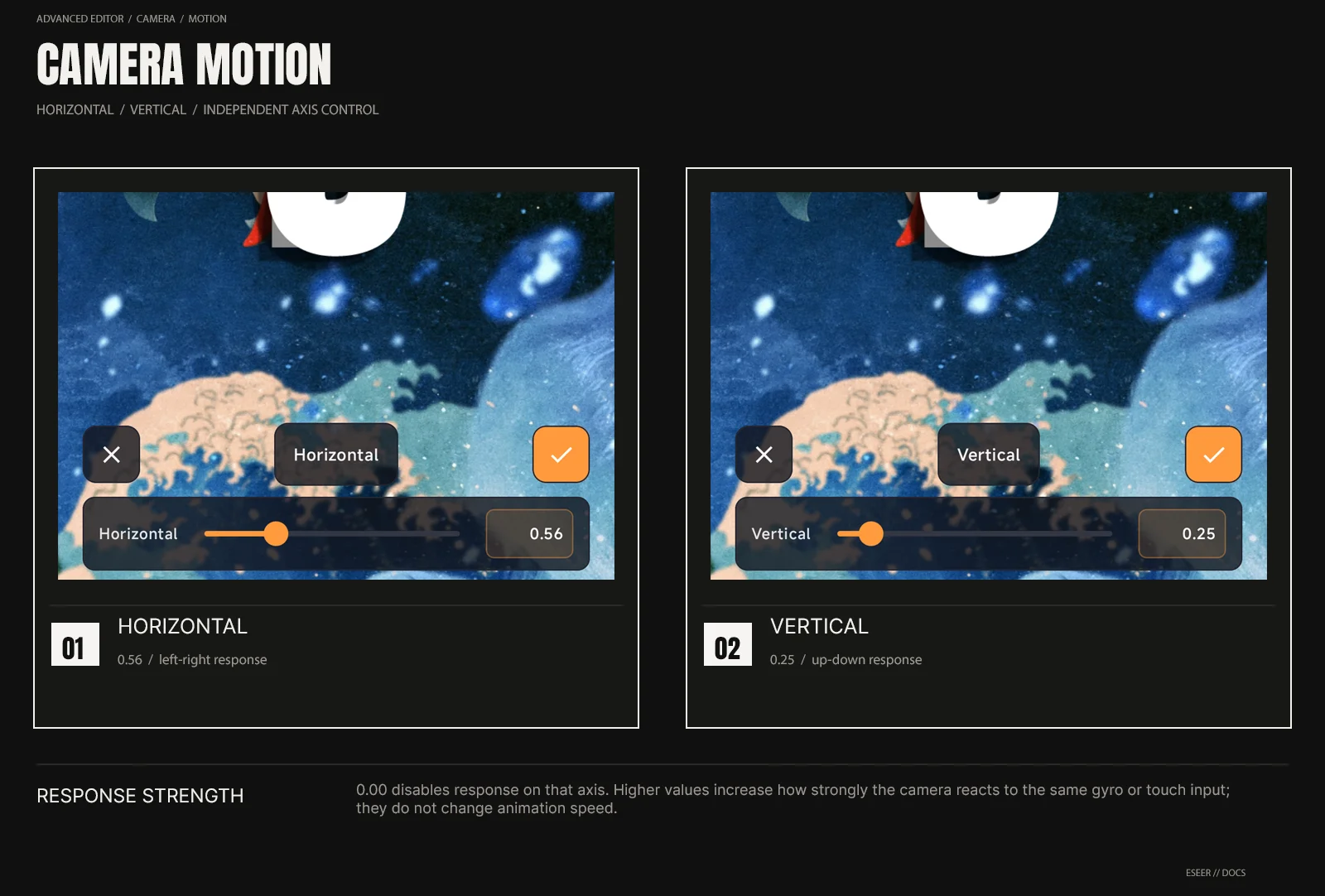
| Control | Range | What it changes |
|---|---|---|
| Horizontal | 0.00 → 2.00 | Strength of left/right camera response |
| Vertical | 0.00 → 2.00 | Strength of up/down camera response |
| 0.00 | Per axis | Disables camera response on that axis |
| 1.00 | Per axis | Baseline response strength |
| 2.00 | Per axis | Stronger response than the baseline |
Motion and scene depth
Stronger Camera Motion can make the scene feel more three-dimensional because layers at different Z positions react with more visible perspective/parallax. It does not change the authored X/Y/Z position of any layer or increase the actual spacing between them.
Edge coverage
| Symptom | Likely adjustment |
|---|---|
| Left/right edges become visible | Reduce Horizontal or increase safe image/layer coverage |
| Top/bottom edges become visible | Reduce Vertical or increase vertical coverage |
| Depth feels weak even with safe edges | Check layer Z/depth separation before maximizing Horizontal / Vertical |
| Scene feels too active | Reduce Horizontal / Vertical before changing Smoothing |
Set the movement amount first, then tune Camera Smoothing. Smoothing changes how the camera reaches its target response; it does not replace the Horizontal / Vertical strength controls.