Reactive Layers
Added in v1.3.80Connect touch, charging, network, time or supported device inputs to per-layer animations, visibility, transforms and FX. Configure WHEN, DO and TARGET, then use TEST to preview the result.
What are Reactive Layers?
Reactive Layers let scene elements react to taps, finger movement, battery and charging state, time, network activity and supported device sensors. Each rule connects WHEN (source and condition), DO (the reaction) and TARGET (the affected layer). TEST shows what the rule is receiving and lets you preview it. Reactions do not overwrite the layer’s saved artwork or transforms.
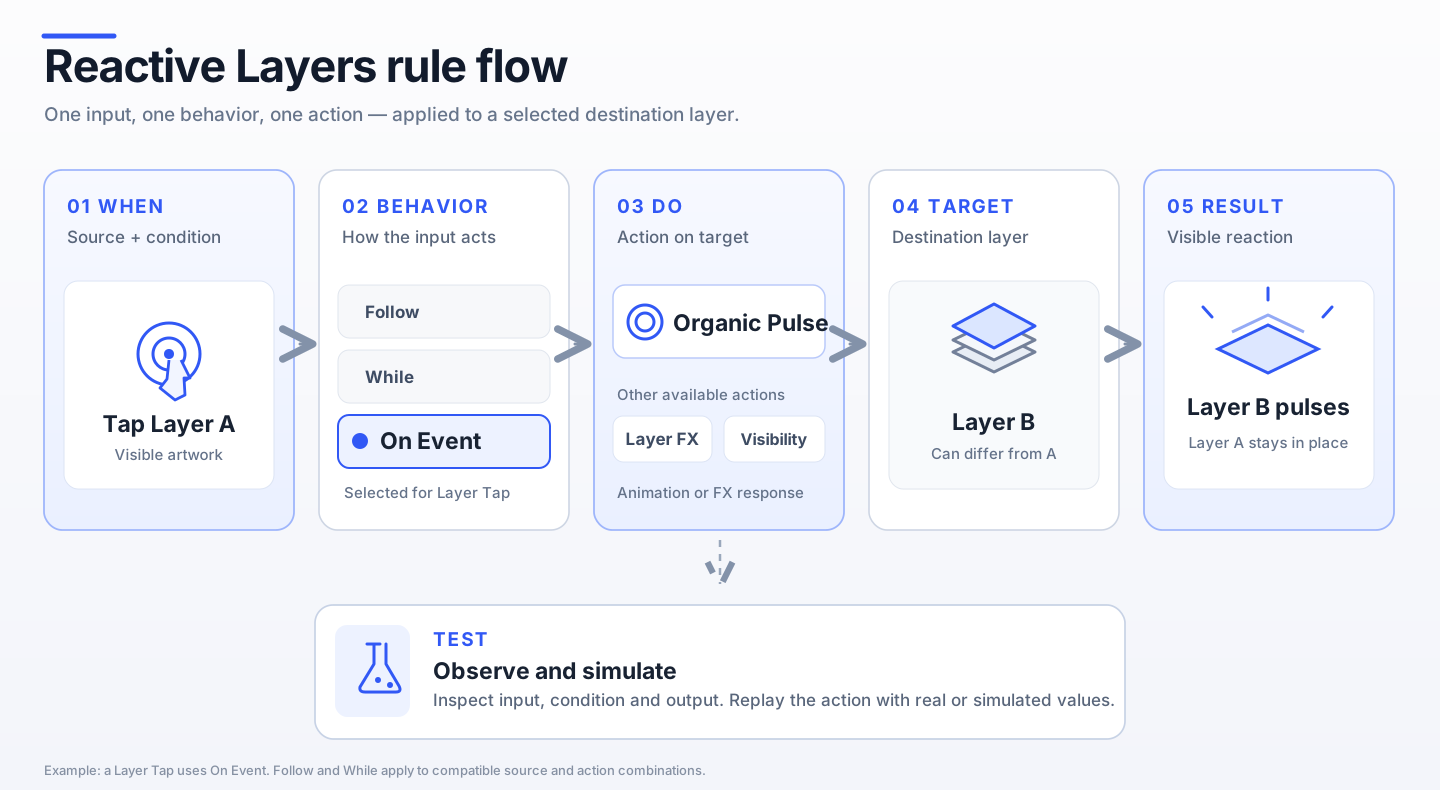
| Rule part | Role | Example |
|---|---|---|
| WHEN | Input and condition | Tap on the foreground layer |
| Behavior | Follow continuously, act While a condition holds, or run On Event | On Event |
| DO | Animation, visibility, property or Layer FX | Organic Pulse |
| TARGET | The layer receiving the action, including the source layer itself | Foreground layer |
| TEST | Inspect real/simulated input and preview the result | Inspect a value or Play Preview |
Create your first Reactive Action
Select the layer
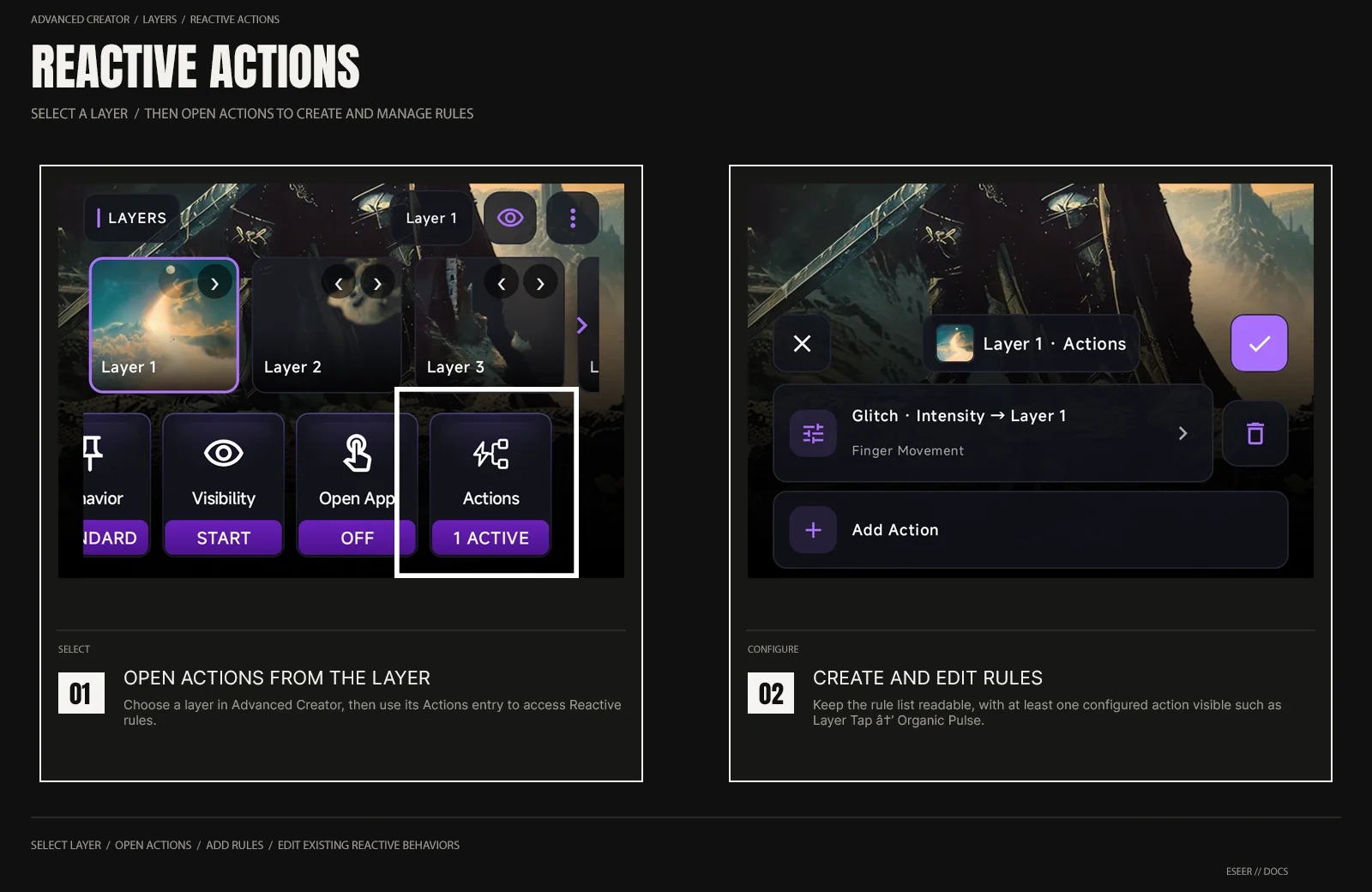
Open the Advanced 3D Scene Creator, go to Layers, and select the source layer.
Open Actions
Open Actions for that layer and add a rule. The header identifies the source layer by number and thumbnail. Rules can be enabled, edited, reordered and removed.
Set WHEN
Choose Layer Tap to react when the visible source layer is tapped.
Set DO
Select Animation → Organic Pulse, then set Strength and Duration.
Set TARGET
Choose the same layer or another layer from the scene using the target thumbnails.
Test and save
Use TEST → Play Preview to see one animation cycle. Also tap the layer in the actual preview to test hit detection and event routing. Save the project when ready.
WHEN: Follow, While and On Event
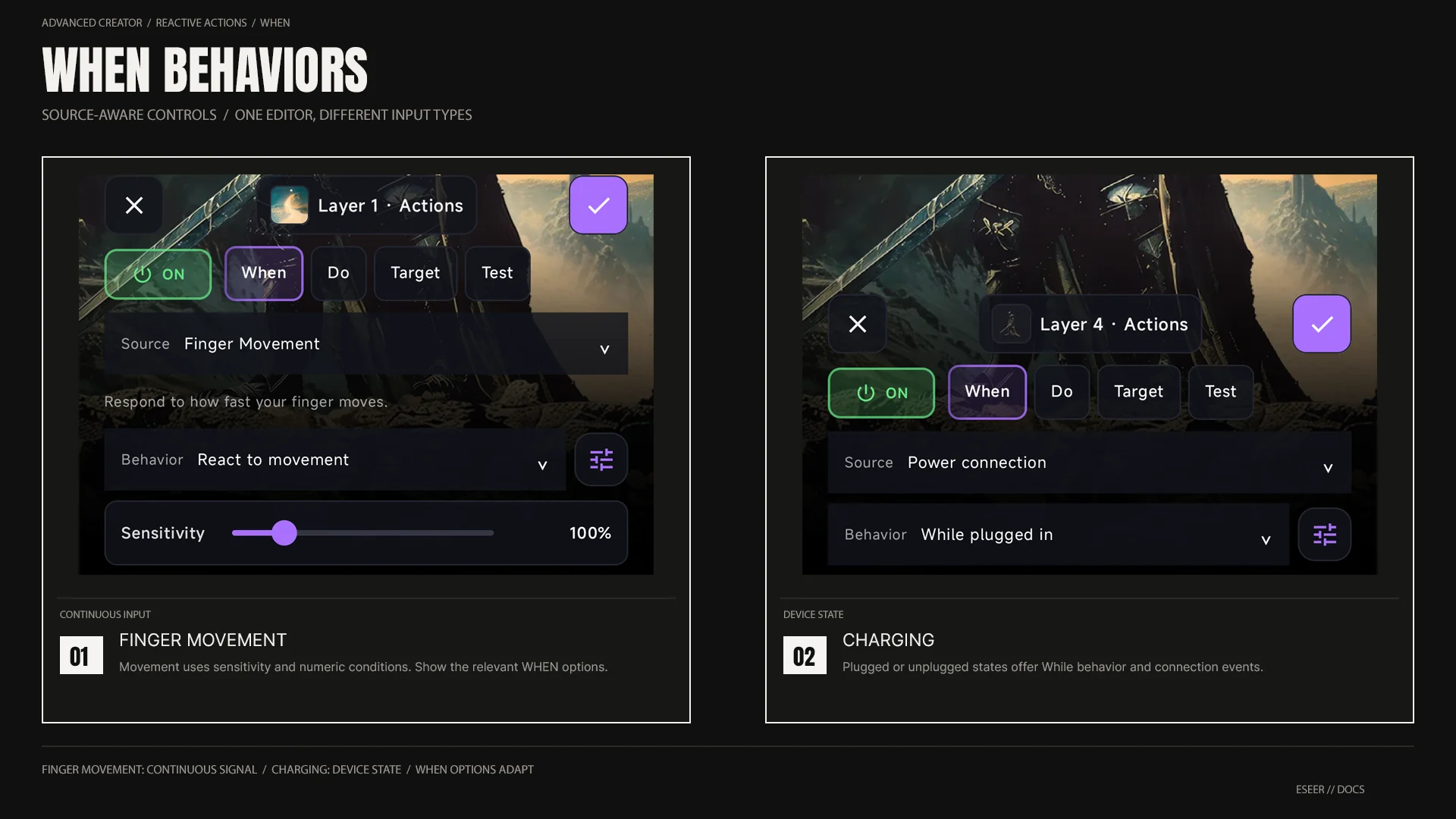
WHEN combines Source, its contextual Behavior and any matching threshold or range. The options change with the input type; you do not have to configure generic numeric conditions for every source.
| Behavior | What happens | Good for |
|---|---|---|
| Follow | Maps a continuous numeric reading to a layer property or FX strength while the reading is available. | Movement speed → FX intensity; battery percentage → opacity |
| While | Maintains an animation, visibility change or property adjustment while a condition is true; releases its contribution when the condition ends. | While charging; during nighttime hours; while movement exceeds a threshold |
| On Event | Fires a one-time action when a tap, named event or observed condition transition occurs. | Tap → Bounce; power connected → Spin; crossing a threshold → Pulse |
The main editor presents direct options such as React to movement, While plugged in, During selected hours or At a selected time. Advanced contains custom conditions and mapping controls such as input/output ranges, inversion, response curve, dead zone, threshold, smoothing and return-to-base.
WHEN: Available input sources
The six common sources appear first. More specialized inputs are available through Advanced. A listed source still depends on device capabilities, Android version and live source availability.
| Primary source | Reading | Typical options |
|---|---|---|
| Layer Tap | A qualified tap on the visible artwork of a source layer. | When this layer is tapped |
| Finger Movement | Finger movement speed in viewport distances per second. | React / While threshold / On threshold entry |
| Device Movement | Change intensity from the existing gyroscope input (not absolute tilt angle). | React / While / On entry |
| Battery Level | Battery charge percentage (0–100%). | Follow / While below or above / crossing |
| Charging | Plugged-in power state, including a full battery still connected. | While plugged/unplugged / connected/disconnected |
| Time of Day | Local time, rounded to minutes. | During hours / At time; time ranges may cross midnight |
| Advanced source | Actual measurement / requirement |
|---|---|
| Finger Position X / Y | Position normalized to 0–1 within the visible viewport; becomes unavailable after release. |
| Finger Motion Strength | Normalized movement intensity; not pressure sensing. |
| Gyroscope Horizontal / Vertical | Signed relative tilt −1…1, with source-appropriate Follow or conditions. |
| Device Orientation | Portrait / landscape configuration, not a continuously measured angle. |
| Thermal Status | Android thermal severity status 0–6 on Android 10+; not CPU temperature. |
| Phone Network Receive | Aggregate incoming traffic for the phone in bytes per second (B/s), not only ESEER traffic; the first sample may be unavailable. |
| Mobile Signal | Cellular signal strength in dBm on Android 10+ when the modem provides a valid cached reading. |
| Ambient Light | Light sensor reading in lux; requires a light sensor. |
| Acceleration | Movement acceleration magnitude in m/s²; requires a compatible sensor. |
| Battery Temperature | Battery-service temperature in °C; distinct from Android thermal severity. |
| External Event / External Variable | Authenticated named events or numeric values sent from an automation app. |
Practical source units: initial light mapping uses 0–1000 lux, acceleration 0–10 m/s², and battery temperature 20–45 °C, while their editable ranges are larger. Mobile signal uses negative dBm values. Phone receive sensitivity defaults to full response around 16 KiB/s for a new simple network FX reaction. These are editable mappings, not clipping limits on real readings.
DO: Layer animations
Select Animation in DO. The primary presets are Organic Pulse, Bounce and Spin. Shake and Wiggle are under Advanced. New animations use modern responsive motion by default; older saved animation styles retain their original behavior unless you change them.
| Animation | Visual result | Controls |
|---|---|---|
| Organic Pulse | Gentle shaped scale pulse. Optionally modulates configured Glow and layer opacity. | Strength · Duration · optional Tune influences |
| Bounce | Up/down movement with anticipation, landing and rebound. | Strength · Duration · available motion styles |
| Spin | Full rotation with smooth momentum and optional settling. | Strength · Duration · direction · 1–10 Turns |
| Shake | Short translation shake. | Strength · Duration · Original / Responsive style when offered |
| Wiggle | Alternating rotation. | Strength · Duration · Original / Responsive style when offered |
One animation cycle uses a configurable Duration of 200–2000 ms. Strength is separate from speed. Spin always finishes complete turns (the optional Turns control ranges from 1 to 10); Strength is not a partial-turn angle slider. Depending on WHEN, an animation can play once or repeat while a condition remains active.
DO: Visibility and properties
Visibility provides Show, Hide and Toggle. Toggle is a one-shot action; it is not offered as a sustained While visibility choice. Reactive Show never bypasses authored hiding, On Unlock visibility constraints, masks or editor-only preview choices.
| Layer Property | Reactive contribution |
|---|---|
| Opacity | Multiplies authored/Intro opacity from 0–100%. |
| Scale | Multiplies the authored/Intro scale (5–500% available in the underlying mapping). |
| Position X / Y | Additive position offsets on the target layer. |
| Rotation X / Y / Z | Additional degrees, with layer-mode restrictions. |
| FX / Glow Intensity | Multiplier up to 300% of the resolved effect intensity. |
| Glow Radius | Multiplier up to 300% of the authored Glow radius. |
| Advanced FX parameter | A bounded numeric value on one exact Layer FX instance. |
Primary property choices are Opacity and Scale; position and rotation are Advanced choices. Numeric properties can Follow an input, stay active While a condition matches, or be set by a discrete event when the editor offers those combinations. Several rules can target one property; the active rule priority determines the final rendered result.
DO: Reactive Layer FX and Glow
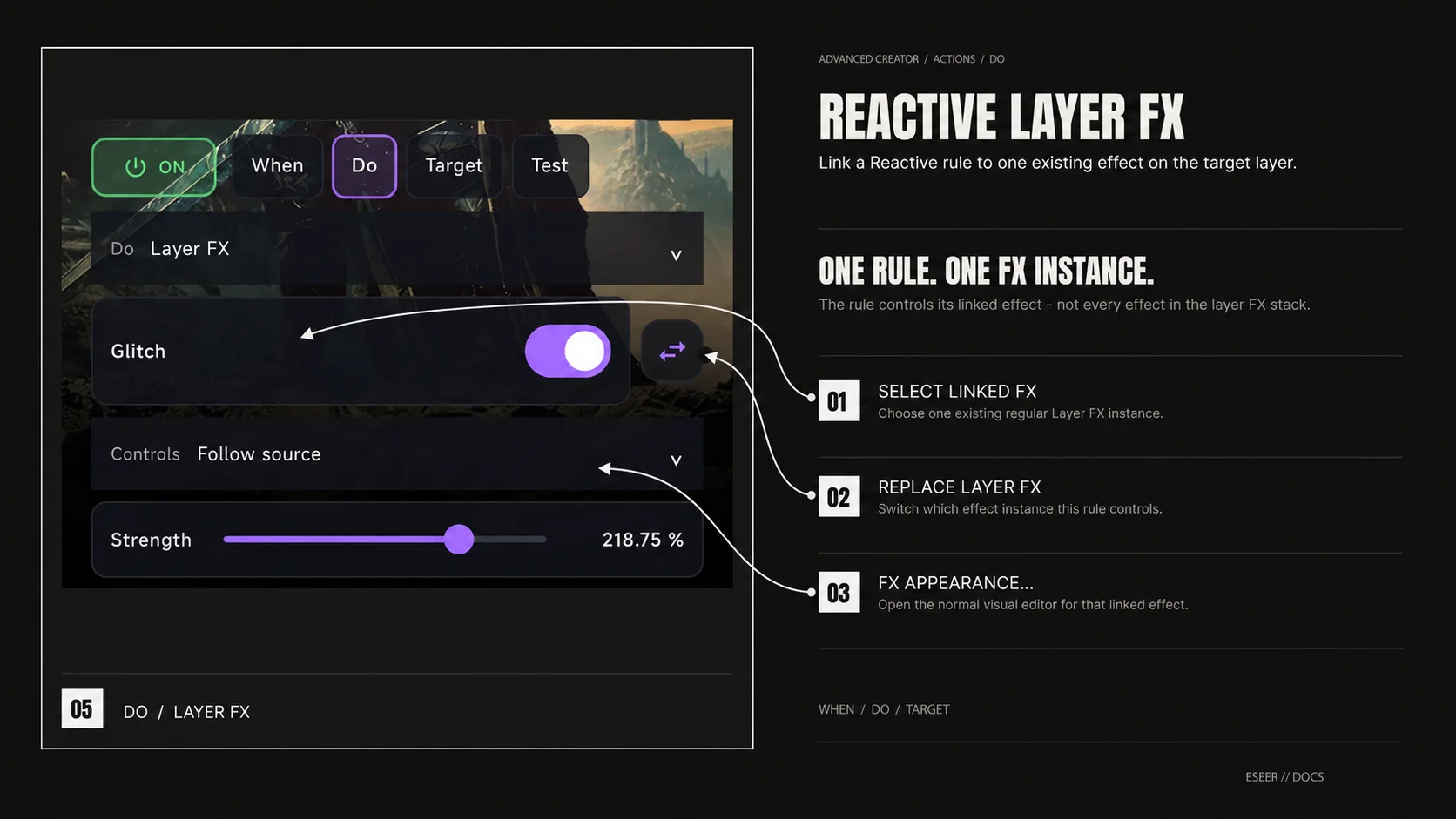
A Reactive Layer FX action addresses one exact regular Layer FX instance on the chosen TARGET. Select a configured effect, use Add Layer FX if none exists, or Replace Layer FX to change the linked instance. Selecting a new FX does not mean every effect on the layer is controlled.
FX appearance… opens the existing visual editor for the linked effect. WHEN remains responsible for input and timing. The standard Layer Effects list identifies effects linked to Reactive rules with Reactive ↗. This keeps the normal appearance controls separate from reaction strength, sensitivity and source.
| FX family | Reactive numeric controls (when the effect is available) |
|---|---|
| Charge Wave | Intensity, Speed, Width, Turbulence, Refraction and Hue. |
| Glow | Intensity, Radius, Softness and Threshold. |
| Glitch / Screen Glitch | Intensity, Block Size and RGB Split. |
| Chromatic Aberration | Intensity, Separation and Edge Boost. |
| Digital Glitch | Intensity and Block Size. |
| Slice Glitch | Intensity, Slice Amount, Slice Height, Scanline Strength, RGB Split and Jitter Speed. |
| Edge Glow | Intensity, Width and Flow Speed. |
| Barrel Distortion | Intensity and Distortion. |
| Scanline | Intensity, Density and Speed. |
Layer Glow uses the visible alpha silhouette of the target. Its normal editor offers Color, Intensity, Radius, Softness, Threshold and Blend; black produces a dark halo and supports Normal/Multiply, while other colors have additional blend modes. Reactive Actions can control supported Glow intensity, radius or advanced numeric appearance parameters. Regular masks, painted coverage and the actual rendered layer alpha affect the halo.
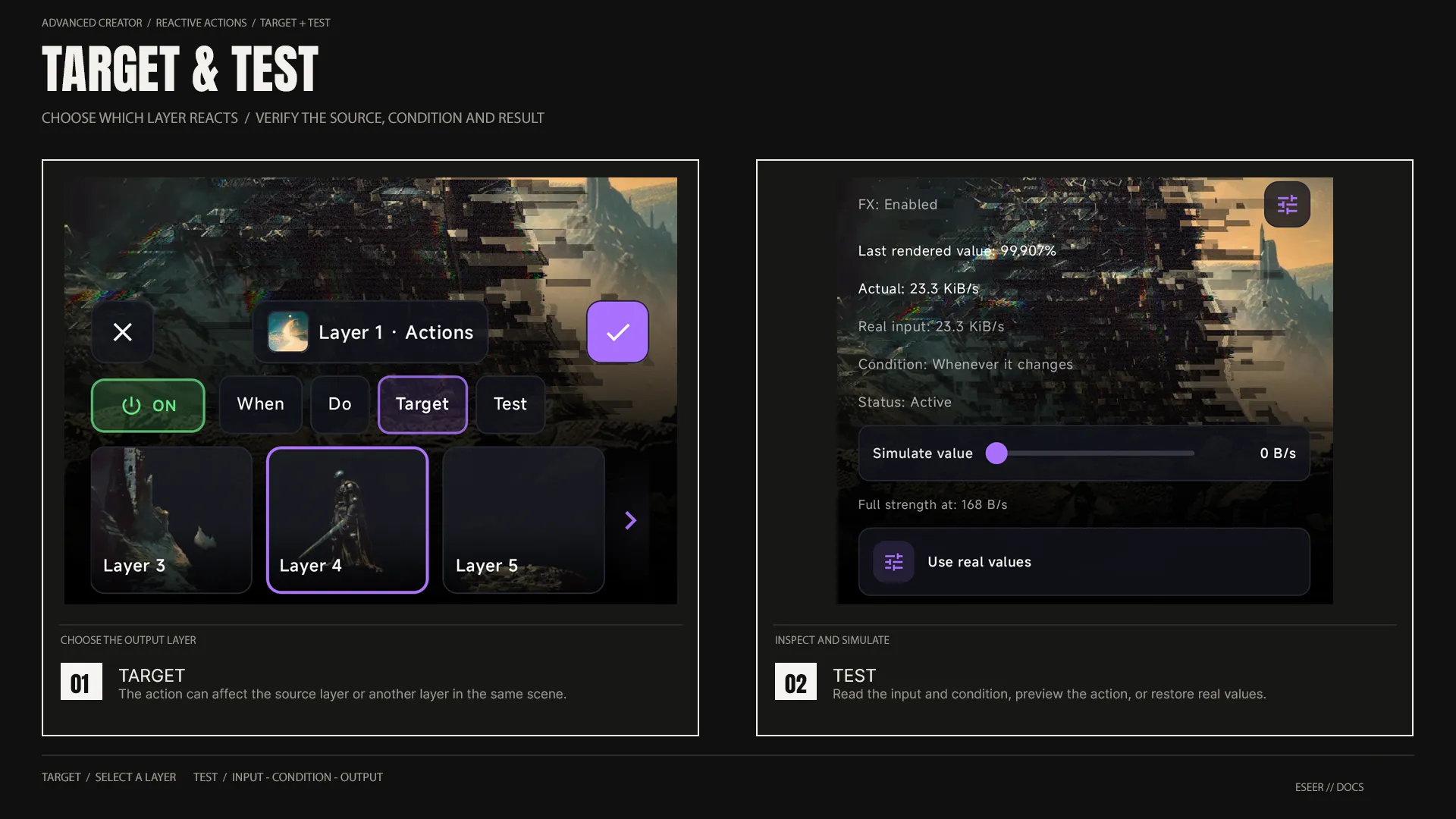
TARGET and TEST
TARGET chooses which scene layer receives the reaction. It can be the owner/source layer or another layer; the selector uses cropped preview cards to identify artwork even when the source PNG includes large transparent bounds.
TEST reports the selected source, whether its real value is available, real or simulated input, condition status, calculated output and target/action feedback. Use Play Preview to animate one cycle independently of a trigger. With numeric inputs, simulate values to check Follow/While, then choose Use real values to restore the actual device reading.
Practical reaction recipes
| Goal | WHEN | DO / TARGET |
|---|---|---|
| A tappable icon | Layer Tap → On Event | Organic Pulse or Bounce → the icon layer. |
| Incoming network glitch | Phone Network Receive → Follow; adjust Sensitivity | Glitch intensity → Layer 1 in the video example. |
| Power connection accent | Charging → While plugged in | Charge Wave → Layer 4 in the video example. |
| Low-battery warning | Battery Level → While at/below 20% | Show the warning layer, or use repeating Organic Pulse. |
| Motion-linked light | Device Movement → React to movement | Glow intensity → a target with Glow configured. |
| Ambient daylight reaction | Ambient Light → Follow | Glow or Layer FX intensity → a visible layer. |
| Shake response | Acceleration → threshold entry | Shake or Pulse → a highlighted layer. |
| Nighttime scene accent | Time of Day → During hours (e.g. 21:00–06:00) | Show / Hide a decorative layer. |
External automation (Advanced)
External automation is an optional Advanced workflow. You can create a named External Event or a numeric External Variable rule, then send an authenticated Android broadcast from a separate automation tool. Automation remains off until you explicitly enable it in the Actions editor. You do not need Tasker, Automate or any other external app to use ordinary Reactive Actions.
Make a rule
Select External Event in Advanced WHEN and name it, for example pulse. Choose an action and valid target. For numeric Follow use an External Variable instead.
Enable automation
Enable Automation in the Creator and copy its installation-local authentication token. The token is not included in shared wallpaper files.
Send a broadcast
Set action to com.seerobs.echo.REACTIVE_COMMAND, package to com.seerobs.echo and target to Broadcast Receiver, with no explicit receiver class.
Provide extras
Send string extras token=YOUR_TOKEN, command=event and name=pulse. The event must match your rule name.
| Command | Additional extras |
|---|---|
| event | name (named event configured in WHEN) |
| variable | name and numeric value |
| visibility | layer stable ID and operation SHOW/HIDE/TOGGLE |
| animation | layer, preset BOUNCE/SHAKE/SPIN/WIGGLE, optional duration_ms and numeric value |
| property | layer, property name, numeric value, optional duration_ms; direct arbitrary shader parameters excluded |
| reset | No additional extras; clears external overrides/variables of the current scene |
Compatibility, limits and troubleshooting
| If you see… | Check… |
|---|---|
| No reaction to a tap | Rule enabled, real alpha-visible tapped pixels, source/target identity, gesture versus drag, and unlocked active wallpaper state. |
| TEST plays but the live wallpaper does not | Check the real event/input, available sensor or power state, installed scene and whether the service is active. TEST simulation is not a real hardware event. |
| Glow or FX not changing | Target has that exact enabled regular FX instance; the rule references it and condition is active. |
| Charge Wave is missing in the live wallpaper | Check that the phone is plugged in. The Creator can preview Charge Wave while unplugged, but the installed wallpaper applies charging-state gating. |
| Network-driven Glitch is inactive | Phone Network Receive measures incoming device traffic; check the rule sensitivity, the first counter sample and actual download activity. |
| Show does not reveal a layer | Authored visibility, On Unlock/Intro restrictions, editor hide and masks still apply. |
| A state rule does not fire on opening | New transition rules establish a baseline first; While can activate immediately if its condition already holds. |
| Sensor is unavailable | Device lacks a sensor, Android API does not expose the data, input was released or wallpaper host is suspended. |
Reactive rules run on the active scene in Orbit/Ortho and the Sequential runtime. In Sequential, inactive scenes are suspended and actions do not freely cross scene transitions. In v1.3.80, the public Creator offers Reactive authoring through 3D Scene; new 2D/Sequential scene creation remains gated outside release. Creator preview, the installed wallpaper and lock/unlock paths have distinct lifecycles, so verify the result on the installed wallpaper as well.
Providers acquire only demanded inputs, and temporal animations cease requesting frames when settled. Rendering cost still depends on the scene, motion frequency, Glow passes and effect stack. Do not assume a constant battery or GPU cost across devices.
Old projects retain their serialized behavior and remain readable by newer ESEER builds. New Reactive rule types, animation presets and advanced FX properties are not guaranteed to work in older app releases.