Advanced Color & Tone
Added in v1.4.1Advanced Color & Tone changes the look of the complete rendered 3D Scene. Adjust lighting and white balance, build a creative color grade, compare Before/After or animate selected properties on Intro.
Where Color & Tone lives
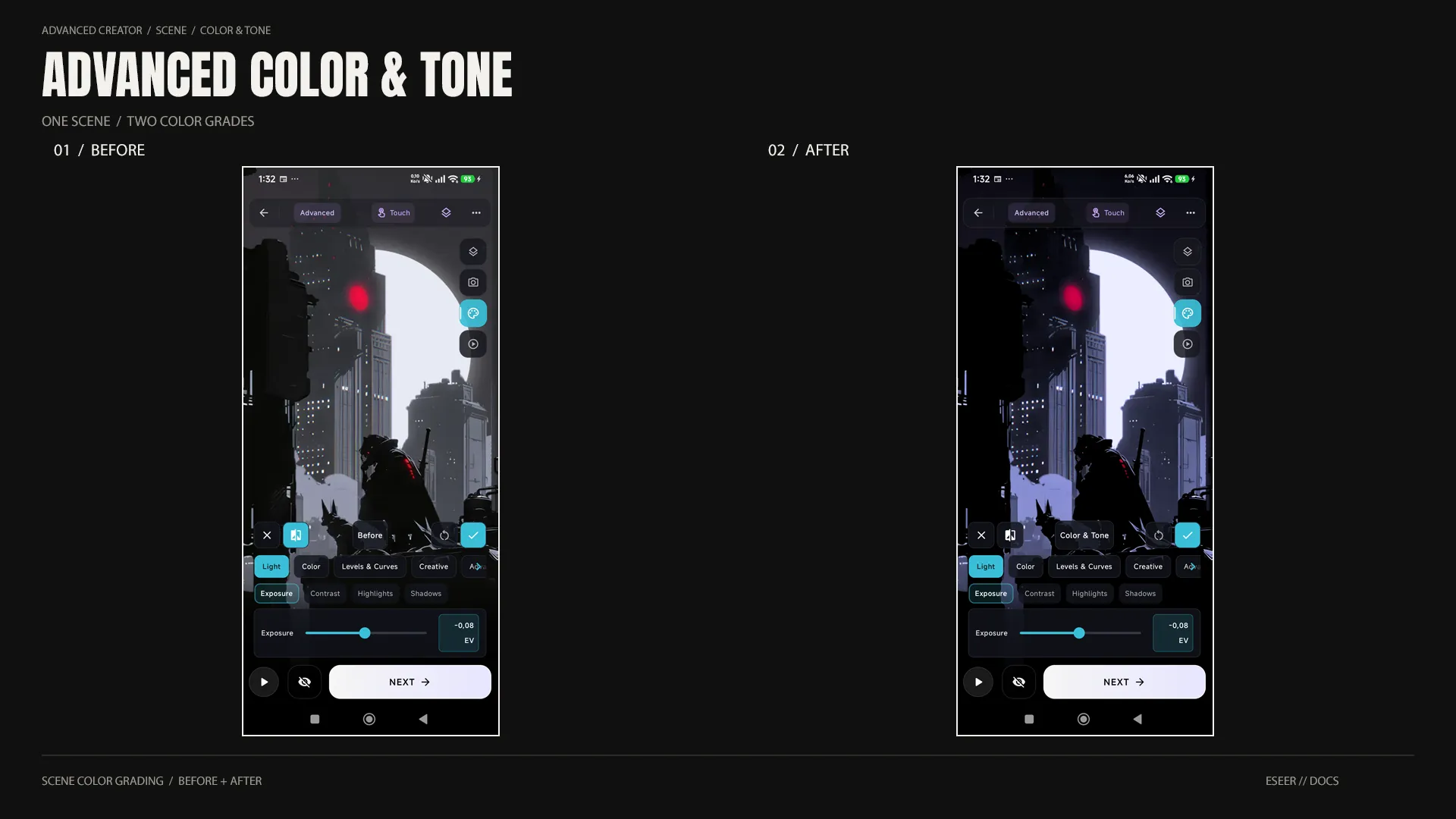
Open Advanced → Scene → Color & Tone to grade the entire composed image. Unlike Scene Background, which fills transparent areas, these tools affect the scene artwork. For one-layer treatments, see Layer Effects.
| Tool area | Available controls |
|---|---|
| Light | Exposure, Contrast, Highlights, Shadows |
| Color | Saturation, Temperature, Tint; Three-Way Color |
| Levels | Black Point, White Point, Gamma; Curves |
| Creative | Gradient Map, Selective Color, Film Fade |
| Advanced | Highlight Rolloff |
| Presets | Neutral, Warm, Cool, Cinematic |
Basic light and color adjustments
| Parameter | Range | Purpose |
|---|---|---|
| Exposure | -4 to +4 EV | Overall light level |
| Contrast / Highlights / Shadows | -100 to +100 | Tonal separation and bright/dark detail |
| Saturation / Temperature / Tint | -100 to +100 | Color intensity and warm/cool or green/magenta balance |
| Black Point / White Point | 0–45 / 55–100 | Black and white endpoints |
| Gamma | 0.25–4.00 | Midtone response |
Advanced creative grading tools
| Tool | What you can edit |
|---|---|
| Curves | Master RGB plus separate Red, Green and Blue curves with editable points and strength |
| Gradient Map | Color stops and presets including Cyberpunk, Duotone and Sunset; overall strength |
| Three-Way Color | Independent tints and amounts for Shadows, Midtones and Highlights |
| Selective Color | Hue Shift, Saturation and Luminance in Red, Orange, Yellow, Green, Cyan, Blue, Purple and Magenta ranges |
| Film Fade | Amount of a faded film-style finish |
| Highlight Rolloff | How the grade transitions into the brightest tones |
Animate Color & Tone during Intro
Advanced → Intro → Color & Tone adds a separate, scene-wide grading animation. It moves enabled properties from authored Starting Values toward the permanent Color & Tone grade, independently of a layer or camera intro.
Set your final grade
Configure the permanent look under Scene → Color & Tone.
Enable animation
Open Intro → Color & Tone and switch on Animation.
Pick properties
Choose Basic or Creative, enable the desired properties and edit their Starting Values.
Set the timing
Choose Delay, Duration and Easing, then press Replay to preview the transition.
| Setting | Range / behavior |
|---|---|
| Delay | 0–4000 ms |
| Duration | 300–3000 ms |
| Easing | Selectable timing curve |
| Starting Value | A value for each enabled grading property; ends at the permanent scene grade |